 LiveLingo
Quick Answer: Which translator app works best offline?
- Text, signs and menus with no signal, on any phone: Google Translate. Free, and camera translation works offline once the language pack is downloaded.
- Speech on iPhone, kept private: Apple Translate in on-device mode. Fewer languages than Google.
- A two-way spoken conversation on iPhone without internet: LiveLingo Offline Mode (iOS 26). It runs on Apple's on-device speech recognition and translation, so it covers the languages Apple supports offline.
- Another free option: Microsoft Translator, with offline packs and a split-screen mode for two people. Its multi-device group conversations were retired in June 2026.
- When you have a connection: LiveLingo's fast two-way translation, translated phone calls and long meetings all need internet.
1. Why You Need an Offline Translator App (And When It Saves You)
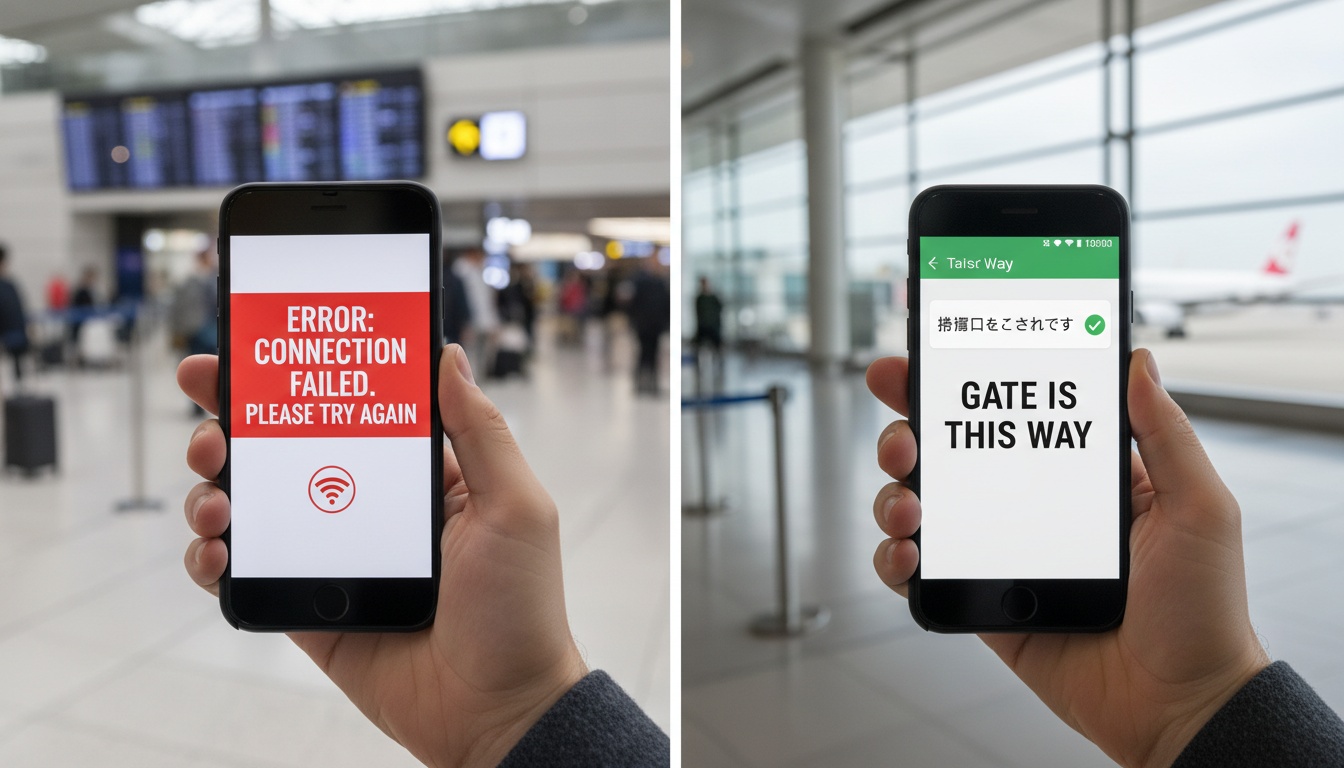
Most people don't think about offline translation until they desperately need it. Then they open Google Translate, see the spinning wheel, and realize the app they've been counting on requires a connection they don't have.
Dead zones in mountain villages, ferry crossings, and basement restaurants aren't rare; they're routine. A translator app without internet capability is just a fancy notepad in those moments. Roaming data in rural areas can cost more than your accommodation if you're not careful.
The Scenarios Where Offline Translation Saves You
The situations aren't always dramatic. Yes, there's the emergency room in a country where you don't speak the language, and for that, you'll want the best medical translation apps for travelers loaded and ready. But there's also the market stall in Oaxaca, the landlord call in rural Portugal, the pharmacy in Vietnam where the pharmacist pulls out a bottle and you genuinely don't know what's in it.
If you need translation that works in real-time conversations, not just reading signs or menus, see how real-time voice translation compares to offline-only apps.
Business travelers hit the same wall. Client meetings in industrial zones and factory floors, anywhere with locked or absent Wi-Fi, create the same problem. Your app needs to work before you walk through the door, not after you've spent ten minutes hunting for a signal.
Testing covered US English as the source language; results for other source languages or regional variants may differ. The six criteria: offline language count, voice and speech support offline, storage requirements per pack, accuracy versus online counterparts, platform availability, and price.
2. How Offline Translation Actually Works (And Why It's Slower Than Online)
Yes, a translator app can absolutely work without internet, but only if you've downloaded the relevant language packs beforehand, over Wi-Fi. The app doesn't automatically download anything when you lose signal. If you haven't prepared, you're stuck.
Under the hood, offline translation apps run compressed neural network models stored directly on your device: no server call required. When you download a language pack, you're downloading a smaller version of that model trained for that specific language pair. A single language pack typically runs 50MB–150MB of storage, roughly the size of five high-res photos, so downloading five languages before a trip eats roughly 500MB–750MB of your phone's space. Manageable on most modern phones, but worth planning for on budget devices with 32GB storage.
The tradeoff is accuracy. Online translation accesses massive, constantly updated AI models running on server farms. Your local offline pack is a smaller, frozen snapshot. The accuracy gap between offline and online has narrowed noticeably for major language pairs in recent years, but it hasn't closed entirely, especially for low-resource languages.
Hybrid Mode: How Apps Switch Between Online and Offline
Most apps operate in hybrid mode by default: they attempt an online translation first, and if no connection is detected, they fall back to the local pack. This means you often get online-quality results even in spotty signal areas; the app grabs a connection when it can.
The failure case, though, is when signal is present but too slow to complete the request, which can cause the app to hang rather than fall back gracefully. On slow hotel Wi-Fi the app can spin for several seconds, then time out or return a degraded result. Full airplane mode actually produced faster, more consistent results in those conditions because the app stopped waiting for a connection that wasn't coming.
Some apps handle the switch automatically. Google Translate detects when you're offline and falls back to the local pack without asking. Others require you to manually enable offline mode. That difference matters at 11pm in a foreign city.
How Language Pack Downloads Work (Step-by-Step)
The process is broadly similar across apps:
- Open the app while connected to Wi-Fi
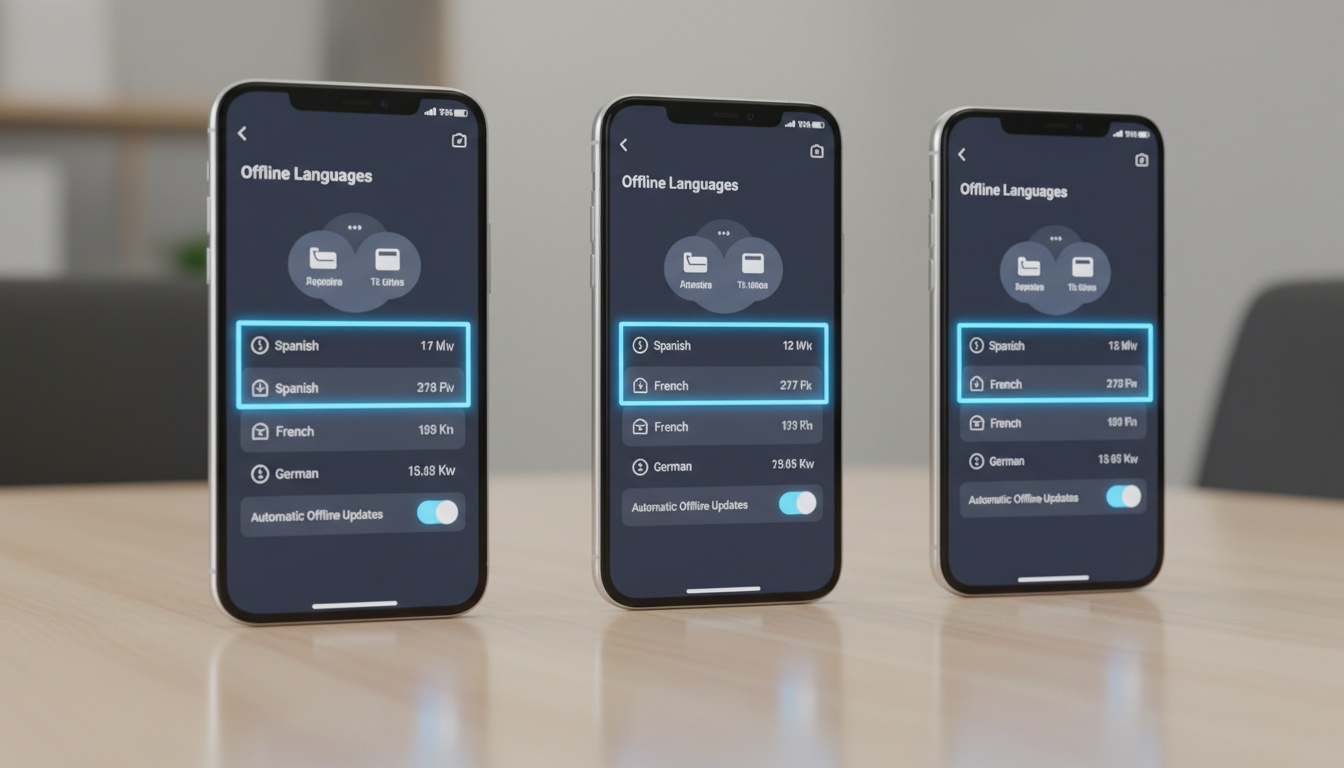
- Go to Settings → Languages (or Offline Languages, depending on the app)
- Find your target language and tap Download
- Wait for confirmation that the pack is stored locally
- Test it immediately: enable airplane mode and run a translation
The step people skip is step five. Don't skip it. Pack downloads occasionally stall silently, and you won't know until you need the translation and get nothing.
One more flag: Google Translate requires a separate speech recognition pack download if you want voice input to work offline. The text translation pack and the speech pack are different files. Download both. Note that offline voice-to-text performance in Google Translate can vary by language and device; some users report it working reliably once the speech pack is installed, while others find it inconsistent. Text input works immediately and consistently offline.
3. The Best Offline Translator Apps Compared: Which One Actually Works When You Land
Features checked October 2026; check app stores for current availability.
| App | Platforms | Offline Features | Free/Paid | Storage per Pack | Best For |
|---|---|---|---|---|---|
| Google Translate | Android, iOS | Many langs / Text+Camera only | Free | ~40–80 MB | Best overall free |
| Microsoft Translator | Android, iOS, Windows | Many langs / Yes | Free | ~50–150 MB | Split-screen chat for two |
| Apple Translate | iOS, iPadOS, macOS | ~20 langs / Yes | Free (built-in) | ~150–200 MB | iPhone privacy |
| iTranslate | Android, iOS | Many langs / Yes (Pro) | Pro (varies; check app store) | ~50–100 MB | Premium voice use |
| DeepL | Android, iOS, Windows, macOS | No offline mode | Free and Pro (needs a connection) | n/a | Online text and documents |
| Yandex Translate | Android, iOS | Several langs / Limited | Free | ~50–100 MB | Russian/Slavic languages |
Language counts and pricing figures change frequently; verify current details in the app store or on each provider's website before subscribing.
Speed and Battery: What the Benchmarks Actually Show
Google Translate returns offline text translations quickly for major languages like Spanish and French, with slightly longer processing times for languages like Japanese, though results vary by device and app version. Microsoft Translator was slightly slower in general use but produced consistent results. Battery impact is minimal for text translation; camera and Live View translation is more demanding and can drain battery noticeably during extended use.
If you're using camera translation to read menus all evening, that's worth knowing before you leave the hotel.
App-by-App Breakdown
Google Translate is the strongest free option for most travelers, but offline voice-to-text performance can be inconsistent. The app accepts speech input, but results vary: some users with the speech recognition pack installed report it working, while others find it returns nothing without a connection. Text input and camera translation work reliably offline. That's the gap worth knowing about: offline text and camera translation are solid; offline speech-to-text is unreliable enough that you shouldn't count on it. For conversations where offline voice accuracy matters, real-time translation fills this gap: see how it compares. As of 2026, Google Translate's offline pack list covers a wide range of languages, and Live View camera translation works completely offline once you've downloaded the pack.
Microsoft Translator offers a large number of downloadable language packs and adds a split-screen mode for talking with one other person. Its multi-device group conversation feature, which let several people join one translated chat, was retired in June 2026. In general use, it is a consistent offline performer for voice input. Slightly slower on text, but reliable.
Apple Translate ships with an "On-Device Mode" that processes everything locally, marketed partly as a privacy feature, and that framing is accurate. When you translate offline with Apple Translate, the text never touches a server; it processes and disappears on your device. For anyone translating supplier contracts, client communications, or anything you wouldn't want stored on a third-party server, that's not a minor point. The limited language selection is the main constraint; if you need Swahili or Bengali offline, Apple isn't your answer.
iTranslate offers a phrasebook, verb conjugations, and synonyms, features that matter when you're trying to understand why a translation works, not just what it says. Full offline translation mode, including offline voice input, is gated behind the Pro subscription, making iTranslate the only app in this comparison where offline voice requires payment. But Pro delivers it better than most alternatives.
DeepL has earned its reputation for natural-sounding translations, particularly for European language pairs. It also performs well for Asian language pairs. It translates on DeepL's servers, so it needs a connection and isn't an offline option. Use it when you're online and need its quality for professional work: translated contracts, not restaurant menus.
Yandex Translate is free and has strong accuracy for Russian and its language family. If your work or travel involves Russian, Ukrainian, or other Slavic languages, Yandex's offline mode punches above its weight. Outside that language family, it's less compelling.
Free vs. Paid Offline Apps: Is It Worth Paying?
For most travelers, free covers everything. Google Translate and Microsoft Translator handle the vast majority of offline translation without internet connection at zero cost. The paid tier earns its price in one specific scenario: you need reliable offline voice input (iTranslate Pro). Everything else is a feature you're unlikely to use enough to justify the subscription.
Storage management matters if you're on a budget device. Each pack needs 50–150MB free, plus working room. Prioritize the languages you'll actually use. Downloading ten packs "just in case" on a phone with 32GB total storage will cause problems. Pick your three most likely languages, download those, and add more only if you have headroom.
One gap offline apps don't solve: voice conversations where accuracy matters: medical appointments, business negotiations, anything where a literal translation causes real problems. For those situations, real-time voice translation fills what offline can't. Compare offline vs. real-time translation to see which fits your use case.
Which Offline Translation Device Works Best?
Dedicated hardware translators like those from Timekettle and Pocketalk offer faster response times and don't drain your phone battery. For extended travel where you're translating constantly, hardware has a real edge. For most people, a smartphone app covers 95% of situations at zero hardware cost. See our roundup of the best translation earbuds 2026 if you're considering wearable options, or our guide to dedicated translation hardware if you're considering a standalone device.
What Is the Best Offline Translator App for iPhone?
Apple Translate is the easiest starting point: it's already installed, and On-Device Mode is a single toggle. Google Translate is the better offline translation iOS option if you need broader language coverage. iTranslate Pro wins for voice-heavy use cases where you want speech recognition to work without a connection.
4. Platform Setup Guides: Offline Translation on Android, iOS & Desktop
Setting Up Google Translate Offline (Android & iPhone)
Android:
- Open Google Translate → tap your profile icon → Settings
- Select "Offline speech recognition" and download your language
- Back in the main app, tap the language name → Download icon next to your target language
- Enable airplane mode and test a phrase
iPhone:
- Open Google Translate → tap your profile icon → Offline languages
- Tap the download icon next to each language you need
- Go to Settings → Voice and download the speech recognition pack separately
- Test in airplane mode before you travel
Note: offline voice-to-text in Google Translate can be unreliable; some users find it works once the speech pack is installed, while others find the app accepts voice input but returns nothing without a connection. Text input works consistently offline. Download the speech pack anyway; it may improve performance in low-signal hybrid mode.
Setting Up Apple Translate Offline (iPhone & iPad)
- Go to iOS Settings → Translate → Downloaded Languages
- Tap the + button and select your language
- Back in the Translate app, go to Settings → On-Device Mode → toggle on
All translations now process locally, no connection needed. The On-Device Mode toggle is easy to miss; it's not in the same menu as the language download. Check both locations before you assume you're set up correctly.
Offline Translation on Desktop: What's Actually Possible
Desktop offline translation is limited. Microsoft Translator and DeepL both offer desktop apps, but offline support on desktop is thinner than mobile. DeepL's desktop app requires a Pro subscription for offline use. Microsoft Translator's Windows app supports offline packs for some languages, though availability varies. macOS users get Apple Translate natively, which works offline with downloaded packs. For serious offline translation needs, mobile remains the more reliable platform; the offline translation Android and iOS ecosystems are simply more mature than desktop equivalents.
5. When Offline Translation Is Good Enough (And When You Need Online)
Yes, Google Translate works offline after downloading language packs, but accuracy drops compared to online mode. The local model is smaller and doesn't receive continuous updates. For most travel situations (menus, signs, directions), offline accuracy is sufficient. Save online mode for medical appointments, legal documents, or anything where a mistranslation has real consequences.
Take a practical test. The Spanish phrase "Tengo una cita con el médico" translates correctly offline. More idiomatic phrases (regional expressions, slang, anything context-dependent) often produce literal, confusing offline results. Online mode handles idioms better because it's drawing on a much larger model with more recent training data.
Google Translate generally performs well offline for major language pairs including Japanese, Chinese, and Korean. Major European languages also perform well. Low-resource languages show more pronounced quality drops offline; the gap between online and offline is widest where the training data is thinnest.
Here's the take most review sites won't give you: for 80% of travel situations, you don't need the best offline translator. You need any offline translator you've actually set up. The app you configured last month beats the "best" app you forgot to download language packs for. Setup discipline matters more than app quality.
Privacy is the other reason to go offline deliberately. When you translate offline, the text never leaves your device. Apple's On-Device Mode makes this explicit, and for anyone translating sensitive business documents, that matters. For a deeper look at translation tools built for professional use, see our guide to the best translation tools for business documents.
6. Why Your Offline Translation Isn't Working (And How to Fix It Before You Travel)
Two weeks before a trip, you download the packs. You land. Nothing works. Here's why, and how to fix it before you're standing at a foreign pharmacy counter. If you're setting up for the first time, our step-by-step offline translation setup guide covers each app in more detail.
1. App reverts to online mode unexpectedly. Check whether airplane mode is actually on, not just Wi-Fi off. Some apps detect cellular data and switch back to online mode automatically. Enable full airplane mode to force offline behavior, then re-download and test. Done.
2. Language pack won't download. Storage space is usually the culprit. Each pack needs 50–150MB free, plus working room. Clear your app cache first, then try again on Wi-Fi. Some packs also fail silently if your app version is outdated; update before downloading.
3. Voice/speech-to-text not working offline. This is Google Translate's most confusing failure mode, and it trips up experienced travelers. The app has two separate downloads: a text translation pack and a speech recognition pack. Most people download only the first one. Go back to Settings → Offline speech recognition and download the speech pack for your language. Even with the speech pack installed, offline voice-to-text in Google Translate can be unreliable; performance varies by language and device, and some users find the app accepts input but returns nothing without a connection. If reliable offline voice input is non-negotiable for your trip, iTranslate Pro or Microsoft Translator are more dependable options.
4. Translation quality suddenly dropped. Offline mode is active. This isn't a bug; it's the smaller local model doing its best. (And honestly, for "where is the bathroom," it's fine.) Switch back to online when you have signal and quality returns immediately.
5. Language pack disappeared after an app update. Major app updates occasionally wipe downloaded packs. Re-download after any significant update. Build the habit of checking your offline languages before a trip, not just once at initial setup.
For most travelers, Google Translate offline plus Apple Translate as a backup covers roughly 95% of situations. Add iTranslate Pro if you need voice recognition to work reliably without a connection; it's worth the subscription cost for that specific use case.
7. Key Takeaways
Before You Travel (Setup)
- Offline translation requires pre-downloading language packs over Wi-Fi: no connection at the time of need, no automatic fallback
- Always test in airplane mode before you travel, not after you land
- Pack sizes typically run 50–150MB each; download five languages and you're looking at 500–750MB of storage
App Comparison
- Google Translate is the best free offline translator app for most users, with broad language pack coverage and camera translation that works offline
- Microsoft Translator offers offline packs and a split-screen mode for two people; its group conversation mode was retired in June 2026
- Apple Translate's On-Device Mode is the strongest privacy-first option for iPhone users
- iTranslate Pro is worth paying for if you need reliable offline voice input; DeepL needs a connection, so it isn't an offline option
- On iPhone, LiveLingo Offline Mode handles a two-way spoken conversation on device, limited to the languages Apple supports offline
Storage & Battery
- Speech-to-text offline is the hardest feature to get right: Google Translate's offline voice-to-text is unreliable; iTranslate Pro handles it more consistently
- Most apps use hybrid mode (attempting online first, falling back to local packs), which can cause hangs on slow connections; full airplane mode sometimes produces faster results
Accuracy & Best Practices
- Offline accuracy is lower than online, but good enough for most travel scenarios; save online mode for medical and legal situations
- For voice conversations where accuracy matters, offline apps fall short; real-time translation fills that gap
- Setup discipline beats app quality: the offline translator comparison that matters most is between the app you configured and the app you didn't
Offline apps handle reading and navigation. Real-time translation handles conversations.
If you're heading somewhere where you'll need to talk, not just point at a screen, try LiveLingo free. Three minutes of real-time voice translation daily in your browser, no credit card required. Pairs directly with the offline setup you've already done.
8. Frequently Asked Questions
Does Google Translate work offline?
Yes, for text and camera translation once you download the language pack over Wi-Fi. Voice input offline is less reliable and needs the separate speech pack. Test everything in airplane mode before you travel.
Which offline translator handles spoken conversations on iPhone?
Apple Translate in on-device mode handles speech without a connection. LiveLingo Offline Mode on iOS 26 also runs on Apple's on-device speech recognition and translation for a two-way conversation, so it covers the same languages Apple supports offline. Download the languages before you lose signal.
Does Microsoft Translator still have group conversations?
No. Microsoft retired the multi-device conversation feature, which let several people join one translated chat from their own phones, in June 2026. The app still offers offline language packs and a split-screen mode for talking with one other person. For a group, LiveLingo can share one live translation to up to 20 phones through a link, but that needs a connection.
Ready to Break the Language Barrier?
Try LiveLingo free: 3 minutes of real-time voice translation every day in your browser, no credit card required. Pro adds 300 minutes a month and AI meeting memos; Pro+ adds translated phone calls.
Try LiveLingo FreeLiveLingo is a live translator app for conversations, meetings and calls. Comparing tools? See the best real-time translation apps.