 LiveLingo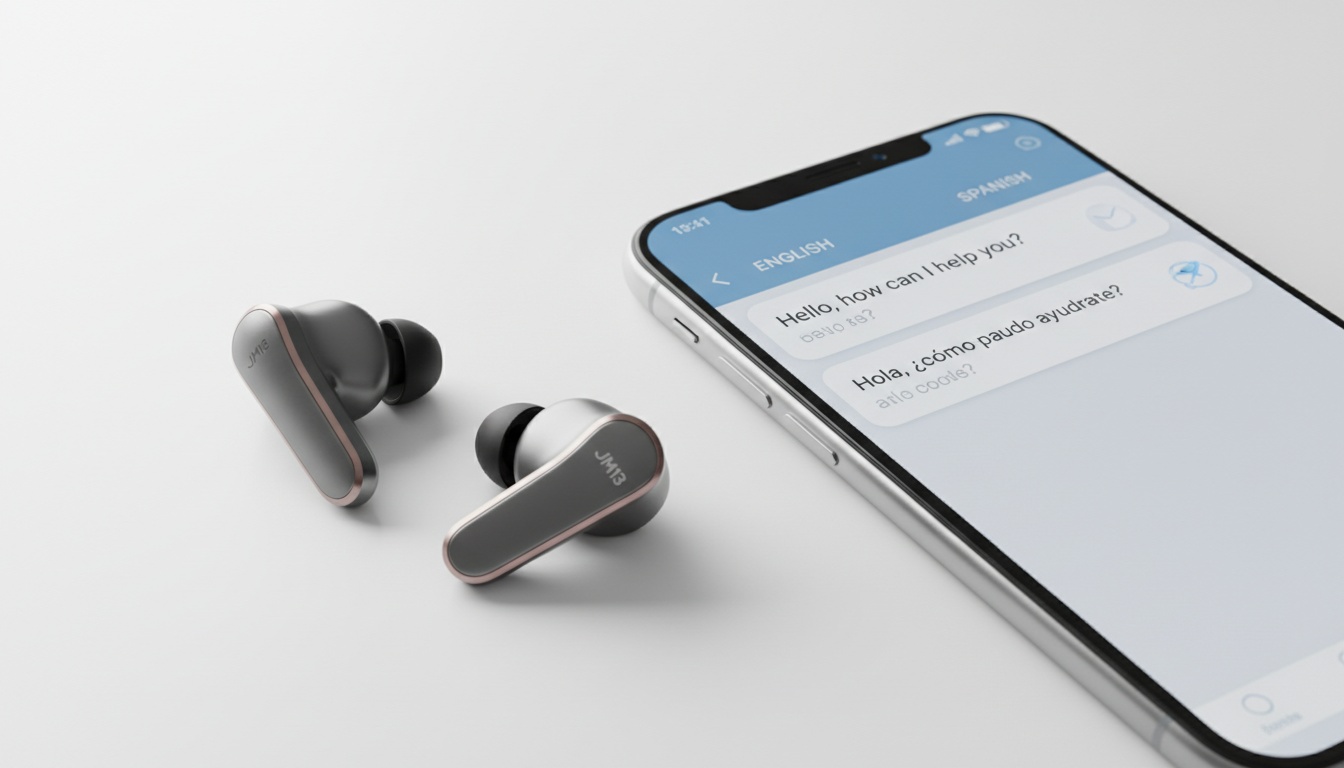
1. What Are JM13 Translation Earbuds?
The JM13 is a wearable device marketed for real-time translation. Most translation earbuds in this category require you to install an official companion app to activate translation features. Without the app, translation functionality typically won't work.
That said, they work decently for casual travel. The catch is that no entry-level device matches a professional interpreter, who typically charges varying per-minute rates depending on the platform and language pair.
2. Is There an App for the OWS-JM13 Earbuds?
Yes, though the app name may not be immediately obvious when searching — companion app names in this category often differ from the device name itself. Buyers sometimes search the iOS or Android store for "JM13" and struggle to find the correct companion software. Check your product documentation or packaging for the exact app name recommended by the manufacturer.
Do You Need an App for Translation Earbuds?
Yes, without it the translation features typically don't activate. The application generally handles processing for both online and offline voice translation tasks.
3. How to Download and Connect the JM13 App
- Download the companion app listed in your product documentation from your app store.
- Pair earbuds: remove from case, open your phone's Bluetooth settings, and select the JM13 device.
- Connect inside the app: open the companion app and follow the on-screen instructions to connect your device.
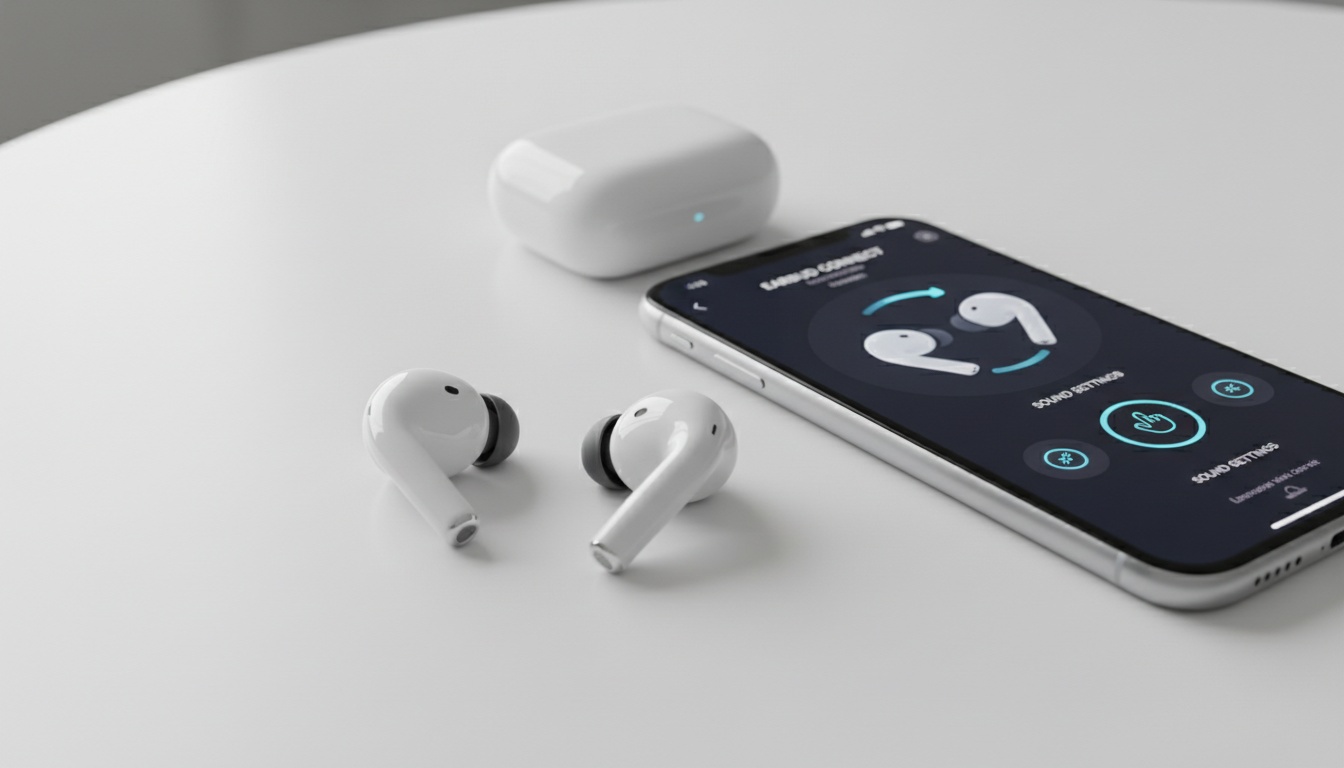
4. Understanding JM13 Translation Modes and Features
The companion app typically supports specific workflows such as AI meetings, online voice translation, offline voice translation, and regular phone calls. This can make them useful simultaneous interpretation earbuds for basic business tasks while traveling internationally.
Noise reduction and equalizer features, if available on your model, help you hear clearly in loud environments. A battery display, if supported, can help prevent unexpected shutdowns during long shifts.
The open-ear design lets you catch translations without losing awareness of what's happening around you. This proves useful in warehouses, markets, or anywhere situational awareness matters.
5. Fix Common JM13 App Connection Problems
Fix 1 — App Can't Find the Earbuds
Reset the hardware cycle. Put the earbuds in their case, remove them, and force-close the app before retrying.
Fix 2 — Earbuds Paired to Phone but App Shows "Disconnected"
Forget the device in Bluetooth settings and re-pair from scratch. This resolves the error in many cases because your phone's Bluetooth and the app may require two separate connection steps. If the problem persists, restart your phone.
Fix 3 — Translation Not Working / No Audio Output
Check your microphone permissions. iOS users routinely skip this during setup. Deny mic access and nothing works.
Fix 4 — One Earbud Not Responding
Consult your product manual for the factory reset procedure. Typically this involves holding a button on the case for several seconds. Place both units securely in the charging case before doing this.
Fix 5 — App Crashes or Freezes
A corrupted cache is usually the culprit. Delete the app and reinstall a fresh copy from the official store.
6. JM13 vs. Competing Translation Apps
How does the companion software stack up against alternatives?
| App / Ecosystem | Offline Support | Translation Latency | Hardware Price |
|---|---|---|---|
| JM13 (companion app) | Varies by model | Varies | Varies by retailer |
| Timekettle WT2 Edge | Yes (check current plan details) | Varies | Varies by retailer |
| Google Translate | Yes | Varies by connection, device, and language pair | Free (BYO Earbuds) |
Hardware prices and latency figures vary and should be confirmed with current retailer and manufacturer listings.
7. When to Use a Visual Translation App Alongside the JM13
The JM13 handles what goes into your ears. It does not solve the problem of what the other person actually reads.
In a loud restaurant, you might speak into the earbud and get a translation delivered straight into your ear — but the other person may not be able to hear the phone speaker over the noise.
That's the gap LiveLingo fills. It puts the translated text in large font on your screen so the other person can read it without straining. Use a LiveLingo visual translation app alongside your hardware.
Earbuds are for what you hear. LiveLingo handles what they will actually need to read on screen.
8. Tips for Getting the Best Translation Accuracy
Speak slowly and avoid regional slang.
Online mode typically delivers faster results, while offline mode tends to be slower but more consistent in noisy environments. Latency varies by language pair, with less common language combinations generally taking longer to process.
If you're working with Southeast Asian languages, check the language support list and download the offline pack if available. It processes slower but remains much more consistent in extremely noisy public environments like street markets.
Cupping your hand over the earbud will improve voice pickup quality outdoors.
9. Privacy and Data Security: What the App Actually Does With Your Audio
Data handling policies vary by app and manufacturer. Generally speaking, online translation modes route audio through external servers, while offline modes tend to keep processing on-device — but you should review the app's current privacy policy for specifics. Offline functionality, where supported, typically requires pre-downloaded language packs.
For business use with sensitive supplier negotiations, use offline mode if confidentiality matters, and verify the app's data practices directly with the manufacturer.
10. Frequently Asked Questions About the JM13 App
Is the companion app free? Pricing models for translation earbud companion apps vary — some are free to download while others may include paid tiers. Check the App Store or Google Play for the most current information on your specific app.
Can JM13 earbuds translate without an internet connection? Many devices in this category support offline voice translation, though this typically requires downloading language packs ahead of time. Check your product documentation to confirm whether your model supports this feature.
Are JM13 earbuds compatible with iPhone and Android? Many translation earbud companion apps support both major platforms, but compatibility can vary. Check your product documentation or the relevant app store listing to confirm availability for your device.
How accurate is the JM13 real-time translation? Translation accuracy varies by language pair and context. Most devices in this category handle basic transactional phrases reasonably well, while highly complex or technical discussions may present more challenges for the AI engine.
What do I do if my JM13 earbuds won't connect to the app? Unpair from Bluetooth settings, then restart the two-step pairing process from scratch.
11. Key Takeaways
- Check your product documentation for the correct companion app name for your JM13 earbuds.
- Pair the earbuds in your phone's Bluetooth settings before connecting them inside the app.
- The software typically supports AI meetings and offline voice translation via offline language packs, where available.
- Earbuds manage incoming audio, while visual translation apps like LiveLingo show responses to others.
12. Ready to Break the Language Barrier?
Try LiveLingo free — no credit card required. Upgrade to Pro for translated calls, AI meeting memos, and additional monthly minutes. Check the LiveLingo website for current plan details and availability.
[Try LiveLingo Free] QUICK_ANSWER: