 LiveLingo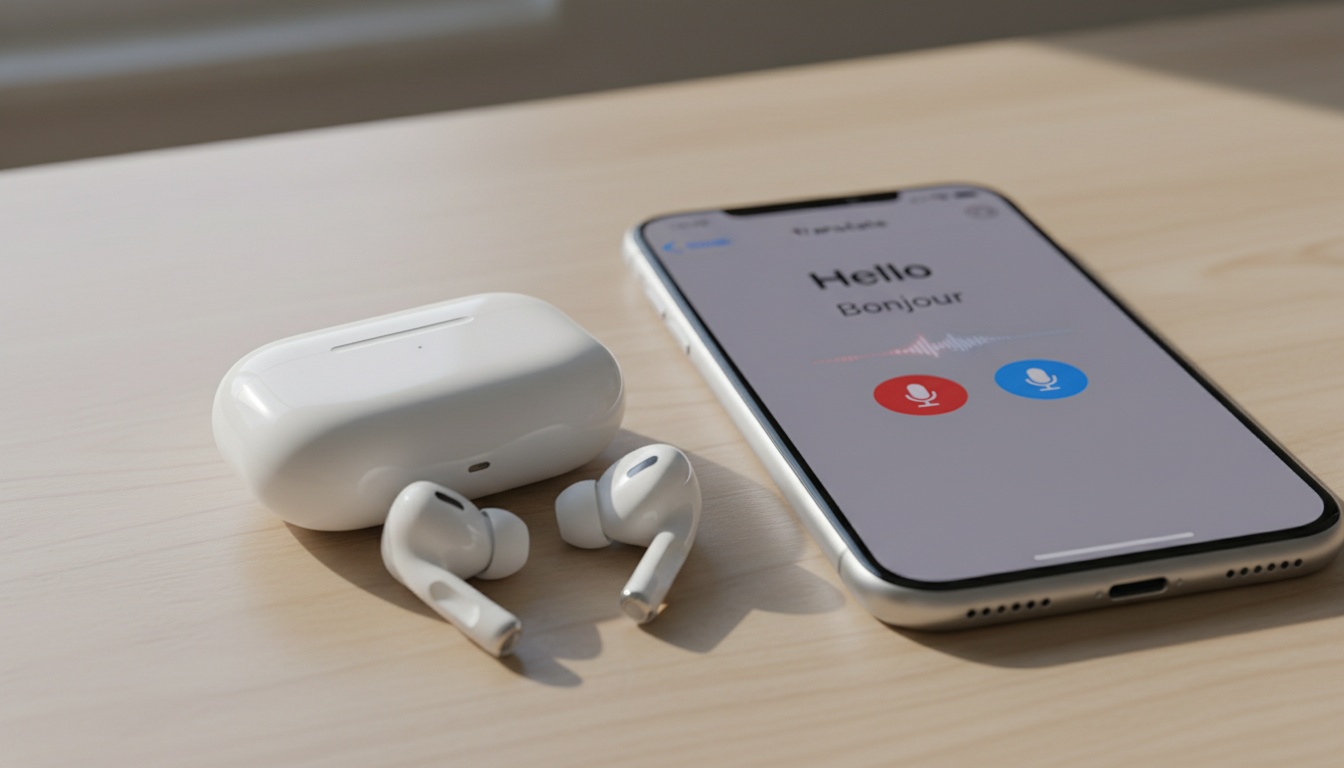
1. What Is Live Translation on AirPods?
Live Translation on AirPods refers to using Apple's Translate app in conversation mode, which can play translated speech through your AirPods in near real time. It uses on-device AI to convert incoming foreign speech into your language — no internet connection needed for major languages when offline language packs are downloaded.
Apple's Neural Engine on supported iPhones handles all processing locally. This means your device uses dedicated hardware to process incoming audio without needing a server connection.
Older or less powerful Neural Engine generations may experience delays or interruptions during conversations compared to the latest hardware.
2. Which AirPods Models Work With Apple's Translate App?
Supported (work with iPhone Translate app conversation mode):
- AirPods Pro 2
- AirPods Pro
- AirPods Max
- AirPods (3rd generation)
Not supported or limited:
- AirPods (1st and 2nd generation) — basic audio output only
- Third-party Bluetooth earbuds — may work for audio output but without deep integration
Older hardware may offer a degraded experience.
How much do AirPods cost? The AirPods Pro 2 retail for $249 (as of mid-2026). The AirPods Max sit at $549. Prices for other models vary — check Apple's website for current pricing.
Once you verify your hardware qualifies, the setup process is straightforward and typically takes just a few minutes.
3. How to Set Up Translation on AirPods
Setup happens inside the native Apple Translate app. Follow these steps.
- Update your iPhone to the latest available iOS version and verify your AirPods firmware is current.
- Launch the app.
- Tap the top selectors to choose your source and target languages.
- Download the language pack.
- Press the conversation icon located at the bottom center of your screen.
- Put your earbuds in.
- Tap the microphone button to begin capturing speech for translation.
AirPods Max owners can use the same in-app controls. Or, ask Siri to open the Translate app — from there, you can manually start conversation mode.
Speak normally.
4. Supported Languages and Real-World Use Cases
High-resource languages generally deliver stronger offline accuracy when language packs are downloaded. These commonly supported options include Spanish, French, German, Japanese, Mandarin, Arabic, Portuguese, Italian, Korean, and a few others.
Low-resource languages may require an active internet connection. Their training data is smaller, which leads to occasional errors during complex sentences.
Experience near-real-time two-way conversations. Conversation mode captures foreign speech through your iPhone, delivering translated audio directly through your AirPods.
That covers what you hear. The gap is what you say back.
But what happens when the other person needs to understand you?
5. When AirPods Translation Isn't Enough
Earbuds only deliver audio. When you speak to a non-shared-language speaker, they also need to comprehend your response.
Screen-based apps handle this outgoing visual communication more naturally. Google Translate and Microsoft Translator app offer split-screen modes, though they often require awkward phone passing. LiveLingo (free download) is a companion app because its Show tab displays large text for the other person to read without squinting at a tiny screen.
Use your earbuds for what you hear, and use LiveLingo for what they need to see — download LiveLingo free to get started. Hardware and software work better together.
6. Troubleshooting: Translation Not Working
Ambient noise is a common culprit when translation accuracy drops. In loud environments, the app may miss words or mistranslate phrases.
Switching the microphone source can help. Navigating to Settings, then Translate, and adjusting microphone settings may improve accuracy in noisy environments.
Still having trouble? Try toggling Airplane Mode off and on to reset your network connection and force the app to re-establish connectivity. If none of these fixes work, the issue may be related to your iPhone model or iOS version.
7. How AirPods Translation Compares to Google and Samsung
Google and Samsung have their own answers here — but Apple's approach is fundamentally different. Google Pixel Buds offer translation assistance in the Android space, while Samsung Galaxy Buds provide some language support for Galaxy phone owners, though real-time translation capabilities vary by device and app.
Apple's solution requires a compatible iPhone and AirPods, representing a significant combined hardware investment compared to some competing setups. That can be a real barrier for some travelers.
That said, Apple's on-device processing approach means your conversations are handled locally rather than sent to a server, which offers a degree of privacy that cloud-based competitors may not match.
8. Powering Your Conversations: Battery Life and Performance Tips
It drains batteries.
Continuous use of the Translate app with audio output through AirPods Pro 2 will reduce battery life compared to normal listening. You should keep a portable charger handy for extended travel days.
Key Takeaways - Translation on AirPods works through Apple's Translate app and requires a compatible iPhone and AirPods. - Setup happens inside the Apple Translate app. - Always download offline language models before traveling internationally. - Earbuds handle incoming audio, while screen-based apps handle outgoing visual communication.
Ready to make sure nothing gets lost in translation — even when AirPods aren't enough? Try LiveLingo Free Today. Check the app listing for current plan details, including free tier limits and Pro features.