 LiveLingo
Quick Answer: Do Google Pixel Buds Pro 2 translate?
Yes — Google Pixel Buds Pro 2, plus older Pixel Buds Pro and A-Series, support Live Translate through the Google Translate app on any Android phone. Wear the buds, open Google Translate, tap Conversation, and translated speech streams into the earbuds within 2-4 seconds per exchange. Coverage: ~40 spoken languages with automatic direction detection; ~10 work offline. The Live Translate feature is Android-only (iPhone users get standard Bluetooth audio but no translation). The buds themselves are audio input/output — all translation happens in Google Cloud, so the same experience works with any Android phone plus any Bluetooth earbuds. Compared to Apple Live Translation on AirPods (5 languages, EU-excluded), Pixel Buds win on coverage.
Tap and speak in English
Tap to start
1. What Google Pixel Buds Translation Actually Does (And What It Doesn't)
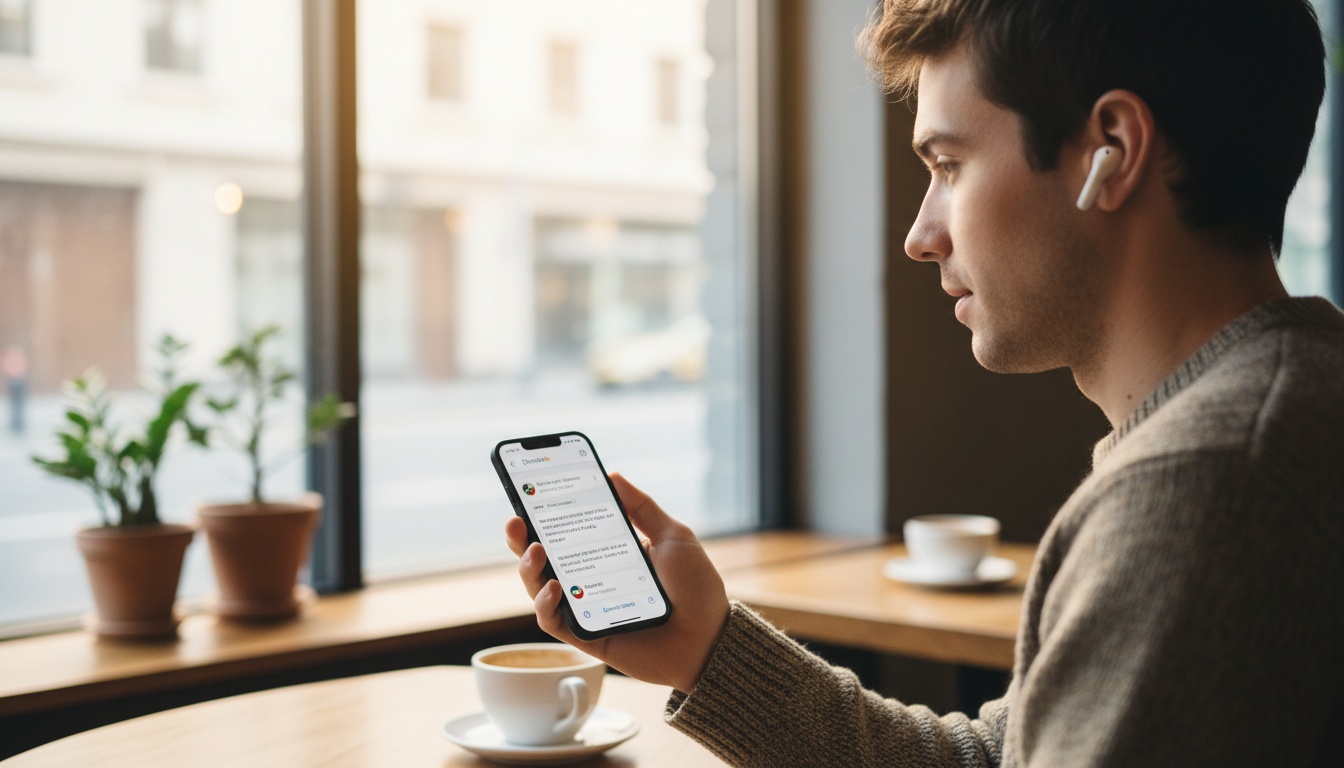
Live Translate on Pixel Buds enables real-time two-way conversation translation through the Google Translate app on Android. One person speaks; the translation plays through the earbuds within a few seconds depending on language pair. Both speakers hear translations without pulling out a phone. Cloud-based processing requires an active data connection.
Live Translate mode works through the Google Translate app on your Android phone. One person speaks, the translation plays back through the earbuds in near real-time. The other person speaks, and their words translate back to you. Two-way, back-and-forth, without pulling out your phone every few seconds.
Translation processing happens in the cloud, which means you get better accuracy than offline alternatives — but it also means you need an active data connection. If you're traveling somewhere with spotty signal, this limitation matters. Plan accordingly.
No signal, no translation.
If you're translating sensitive business conversations, be aware that your audio is transmitted to Google's servers. For confidential discussions, a human interpreter is the more secure option.
Supported Models and Language Accuracy
Current Pixel Buds models support the full translation feature, which means you're not locked into the most expensive option. The software experience is identical across the lineup. What differs is the hardware doing the voice pickup — which directly impacts how well translation works in noisy environments, which we'll get into.
This is AI-powered translation, not a human interpreter. Spanish and French perform consistently well. Less common language pairs — Hungarian, Swahili, Tagalog — show noticeably more errors, especially with fast speech or regional accents. Going in with that understanding saves a lot of frustration.
---
2. How to Set Up Live Translate on Pixel Buds: Step-by-Step
Prerequisites:
- Pixel Buds paired to your Android phone (Android 6.0 or newer)
- Google Translate app installed and updated
- Microphone permissions granted in Android settings
- Active internet connection
- iOS users: Live Translate is not supported — see the iPhone section below
Skipping the permissions check is the single most common reason translation doesn't activate.
If you're comparing translation tools beyond Pixel Buds, explore real-time translation apps to see how different solutions handle the same scenarios.
Step 1 — Pair Your Pixel Buds and Open Google Translate
Pair your Pixel Buds via Bluetooth. Open Google Translate and confirm microphone access is enabled in Android settings. That's it.
Step 2 — Select Your Languages
Tap the language selector at the top of the Translate app screen. Choose your source language on the left, target language on the right. Pick both before you start talking. Auto-detect is convenient but occasionally misidentifies languages that share phonetic patterns, especially in noisy environments.
Step 3 — Activate Conversation Mode
Tap the conversation mode icon (two overlapping speech bubbles) at the bottom of the screen. Or say "Hey Google, help me speak Japanese" — or whatever your target language is. The "Hey Google" voice command is the one I use now. It feels strange the first time. By the third trip, it's faster than navigating the app, especially when your hands are full at a market stall.
Step 4 — Start Translating
Choose tap-to-talk (manual) or Auto mode (automatic detection). Auto mode is more natural for real conversations; tap-to-talk is more reliable in noisy environments where the microphone picks up ambient sound between turns.
What you hear through your earbuds is the translation of what the other person says. What plays through your phone's speaker is the translation of what you say, so the other person can hear it without wearing anything.
---
3. Which Pixel Buds Model Is Best for Translation?
The Pixel Buds Pro is the current flagship and the best choice for translation in noisy environments, thanks to its voice isolation and ANC. The Pixel Buds A-Series runs identical translation software at a lower price — the right call for casual travel.
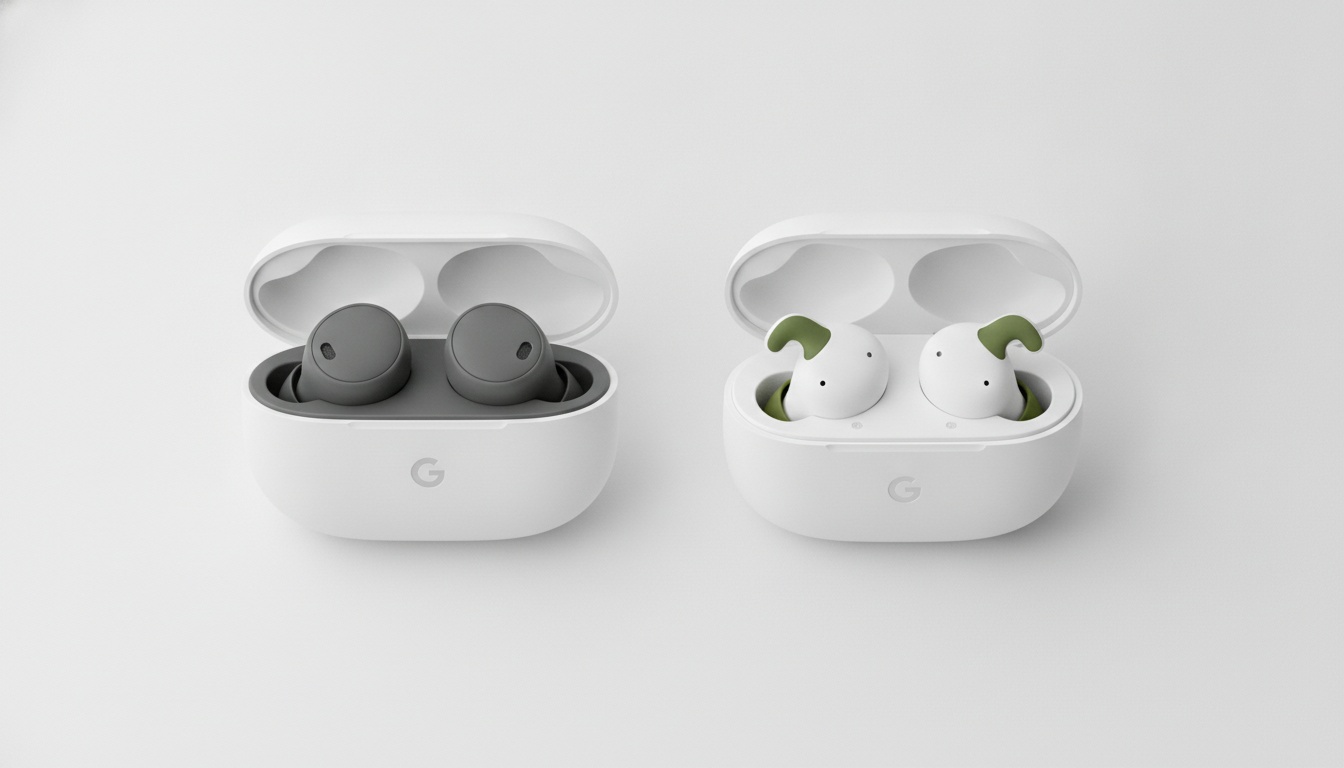
Here's the honest comparison based on available specifications:
| Feature | Pixel Buds Pro | Pixel Buds A-Series |
|---|---|---|
| Translation support | ✓ Full | ✓ Full |
| ANC | Yes | No |
| Voice isolation in noise | Good | Fair |
| Approximate price | Check Google Store | Check Google Store |
Check Google Store for current pricing. Battery life and detailed microphone array specs vary by source — confirm on Google's current product pages before purchasing.
In practice, the Pixel Buds Pro's ANC and voice isolation processing make a real difference in noisy environments. In a crowded izakaya, that's the difference between the app hearing you clearly and it picking up the table next to you. If you're doing translation work in busy restaurants or open offices, that matters.
Here's the contrarian take: the Pixel Buds A-Series is a legitimate choice for most people. Translation quality is roughly 80% software and network, 20% hardware. The A-Series runs the same AI-powered translation models as the Pro. You're paying less and getting the same software.
The tradeoff shows up in loud spaces — no ANC means background noise bleeds into the microphone more, which degrades translation accuracy in chaotic environments. For casual travel translation (hotel check-in, ordering food, asking directions), the A-Series works fine. For business communication or busy city markets, spend up for the Pro.
---
4. Does Pixel Buds Translation Work on iPhone?
No. Live Translate on Pixel Buds is Android-only and requires the Google Translate app with Assistant integration. iOS users can use Apple's Live Translation features or third-party translation apps through their phone speaker instead.
According to Google's support documentation, iOS users don't get access to the full Assistant functionality on Pixel Buds. The Live Translate feature requires the Android ecosystem — specifically the Google Translate app with Assistant integration.
If you're on iPhone and want real-time translation through earbuds, your main option is Apple's own Live Translation feature and compatible Apple hardware. Third-party translation apps running through your phone's speaker are the other route.
The Pixel Buds hardware itself will pair to an iPhone over Bluetooth, but you won't get conversation mode translation. It's a meaningful limitation worth knowing before you buy.
---
5. Real-World Scenarios: Where Pixel Buds Translation Excels (and Falls Short)
So when does this actually work in the wild — and when does it fall apart?
Travel translation is where Pixel Buds shine. The Osaka ramen counter I mentioned earlier is a good benchmark. I had the Pixel Buds Pro in, phone face-up between us, Auto mode running. The chef described the broth — I heard the translation in my ear a couple of seconds later. Not instant, but fast enough that the conversation felt real. He laughed when I tried to repeat the Japanese back to him. That's the ceiling and the floor of what this system does: short sentences, common language pairs, relatively quiet environments.
That said, business communication is more complicated. Informal meetings and client greetings work well. Technical jargon, contract terms, and nuanced negotiation — that's where real-time transcription starts producing errors that could actually matter. Use this for foreign language communication in low-stakes contexts; bring a human interpreter for anything legally or financially significant.
When Translation Falls Short: Business and Legal Contexts
Loud environments are the system's real weakness. Airports, street markets, and loud restaurants degrade microphone pickup significantly. The Pro's ANC helps, but it's not a fix for a genuinely chaotic acoustic environment.
Beyond noisy environments, offline translation is not supported on Pixel Buds. Live Translate requires an active data connection. Dedicated translator devices like the Pocketalk or Vasco often offer downloadable offline language packs. Worth knowing if you're traveling somewhere with unreliable data and relying on Pixel Buds as your only option.
One more practical note: Live Translate uses mobile data continuously during conversation. If you're on a limited international data plan, test your usage before a long session — sustained back-and-forth conversation can consume data faster than you'd expect.
---
6. What Happens When You Switch Languages Mid-Conversation?
You must manually switch languages in the app. Auto-detect takes a few seconds and sometimes misidentifies language transitions. For conversations involving three or more languages, tap-to-talk mode with manual language selection is more reliable than Auto mode.
This comes up more than people expect. Multilingual environments, a conversation that starts in Spanish and shifts to English, a market where the vendor calls over a colleague who speaks a different language entirely — these are real scenarios, not edge cases.
Auto-detect in conversation mode will attempt to identify the new language, but it takes a few seconds and sometimes misidentifies the transition. In practice, it's faster to tap the language selector and change it yourself than to wait for auto-detect to catch up. If you're regularly moving between three or more languages in a single setting, tap-to-talk mode with manual language selection is more reliable than Auto mode.
---
7. Troubleshooting: Why Your Pixel Buds Translation Isn't Working
Fix: Check App Permissions and Bluetooth Connection
Translation not working at all almost always comes down to one of three things. Either microphone permission is denied in Android settings, Bluetooth dropped mid-session, or the Google Translate app needs an update. Check all three before anything else.
Fix: Improve Your Internet Connection
Here's a real example: this one burned me in a hotel lobby in Lisbon — the Wi-Fi showed full bars but the translation was cutting out every third sentence. Turned out the hotel network was throttled. Switched to mobile data and it was instant. If you're getting choppy, delayed output, that's almost always the culprit, not the hardware. Disable your VPN too if you're running one — it adds latency that the real-time translation pipeline doesn't handle gracefully.
Fix: Manually Set Language Selection
If the wrong language keeps getting detected:
- Open the Translate app and tap the language selector at the top
- Turn off auto-detect and manually set both source and target languages
- Re-enter conversation mode — the manual setting persists for the session
Auto-detect is convenient but it occasionally misidentifies languages that share phonetic patterns. Two extra taps eliminates the problem entirely.
Fix: Enable Conversation Mode Properly
Only one person's voice being translated? You're probably in one-way translate mode rather than conversation mode. Confirm the conversation mode icon is active — both speakers should appear on screen. Then check whether tap-to-talk or auto-detect is configured for both speakers, not just yours.
Quick troubleshooting checklist:
- Microphone permission enabled in Android settings?
- Google Translate app updated to latest version?
- Bluetooth connection stable (reconnect if dropped)?
- Active Wi-Fi or mobile data connection?
- VPN disabled?
- Conversation mode active (not one-way translate)?
- Languages manually set if auto-detect is misbehaving?
---
8. Tips for Getting the Best Translation Accuracy From Your Pixel Buds
- Speak in short, complete sentences. Pause between them — the AI needs a moment to process before the next input starts. Overlapping speech produces garbled output.
- Reduce background noise before you start. A 30-second walk to a quieter corner of the restaurant does more than ANC. The Pro model helps, but positioning yourself in a quieter spot helps more.
- Use common vocabulary. Idioms and slang cause more translation errors than accent or speed — "I'm very hungry" translates cleaner than "I'm starving." This sounds obvious, but most people don't think about it mid-conversation.
- In conversation mode, hold the phone between both speakers. The phone's microphone picks up their voice; your earbuds' microphones capture yours. Keeping the phone centrally positioned means both get clean input.
- Keep the Google Translate app updated. Google periodically pushes translation model updates that improve accuracy for languages like Japanese and Korean — keep auto-updates on. (Google Translate app changelog)
- For business meetings, prep key phrases in the Translate app's phrasebook feature beforehand. A connectivity hiccup won't derail the conversation if you have fallbacks ready.
- Pair earbuds with a phone-screen app when the other person needs to see translations. Earbuds deliver audio to you — they don't help the other person read anything. I've used both LiveLingo's Show tab and Google Translate's own conversation screen for this. LiveLingo has the cleaner UI for showing translated text to another person and exports conversation transcripts, which is useful after business meetings. Google Translate's built-in screen is free and already installed. Either works; the point is translator earbuds alone don't solve the "they need to see it" problem.
For high-stakes business or legal meetings, supplement with professional interpreter services.
---
Pixel Buds handles what you hear. For what the other person needs to see — or for offline translation and meeting transcripts — try LiveLingo free. Five minutes of daily translation, no credit card required. It covers the gaps Pixel Buds doesn't.
---
9. Key Takeaways
- Pixel Buds Live Translate works through the Google Translate app — cloud-based, Android-only, requires an active data connection
- Current Pixel Buds models support the full translation feature; the Pixel Buds Pro has the best voice isolation for noisy environments
- The Pixel Buds A-Series is a legitimate budget option — translation accuracy is mostly software, not hardware
- iOS users don't get Live Translate functionality; this is an Android-only feature
- Offline translation is not supported — plan for this if traveling somewhere with unreliable data
- Translation latency typically runs a few seconds and varies by language pair, network conditions, and environment
- Most "translation not working" issues trace back to microphone permissions, Bluetooth drops, or a weak data connection
- For two-way conversations where the other person needs to see real-time transcription on screen, pair your earbuds with a phone-screen app