 LiveLingo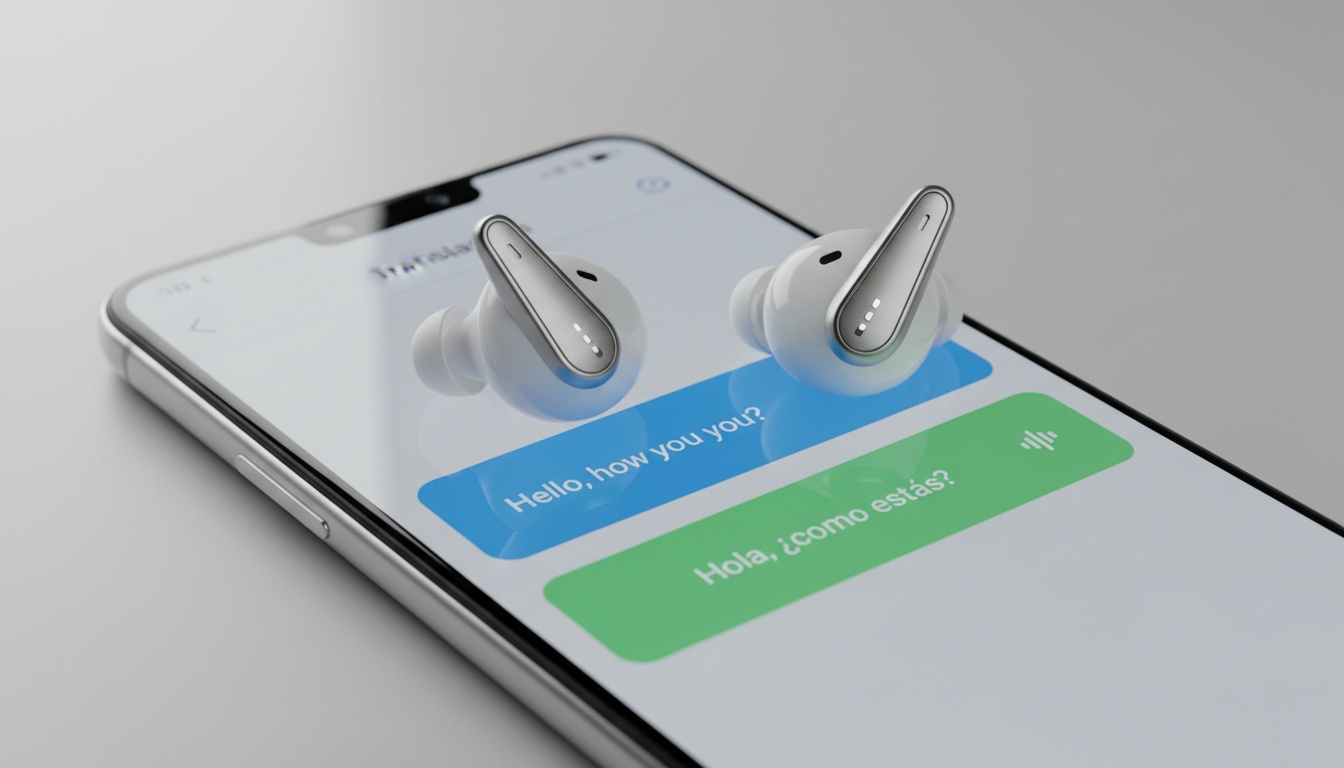
1. What Is the Galaxy Buds 3 Pro Interpreter App?
The Galaxy Buds 3 Pro Interpreter is expected to be a built-in Galaxy AI feature — not a separate download. Based on Samsung's existing Galaxy AI implementations, it is anticipated to run inside the Galaxy Buds3 Pro Manager app and is designed to offer two modes: Conversation (two-way, pass one bud to your partner) and Lecture (one-way, keep both buds in).
Here's how they split. Conversation mode handles two-way dialogue. Lecture translation is for continuous listening.
The two-way setting requires passing one earbud to your partner. The built-in microphones then isolate each voice with solid audio separation.
Offline use may be possible if you download language packs beforehand.
Does Samsung Have an Interpreter App?
Samsung is expected to embed a native Interpreter tool directly within the Galaxy Buds3 Pro Manager application, consistent with how the feature works on other Galaxy AI-enabled earbuds. Finding it takes a few steps. Based on existing Galaxy AI devices, it is anticipated to sit under a Labs-style menu, not the main settings.
On current Galaxy AI earbuds, the manufacturer buries this feature deep inside a secondary menu system. Most casual users miss it entirely.
2. How to Download and Set Up the Galaxy Buds3 Pro Manager App
Where to Find the App
When available, the official management software is expected to be found on the official Galaxy Store or Google Play Store. We recommend checking the proprietary Samsung storefront first because it often provides a more stable experience.
Complete the app download first. Skipping this causes problems. A Samsung account sign-in may be required to process language files through their cloud servers.
Is There an App for Galaxy Buds 3 Pro?
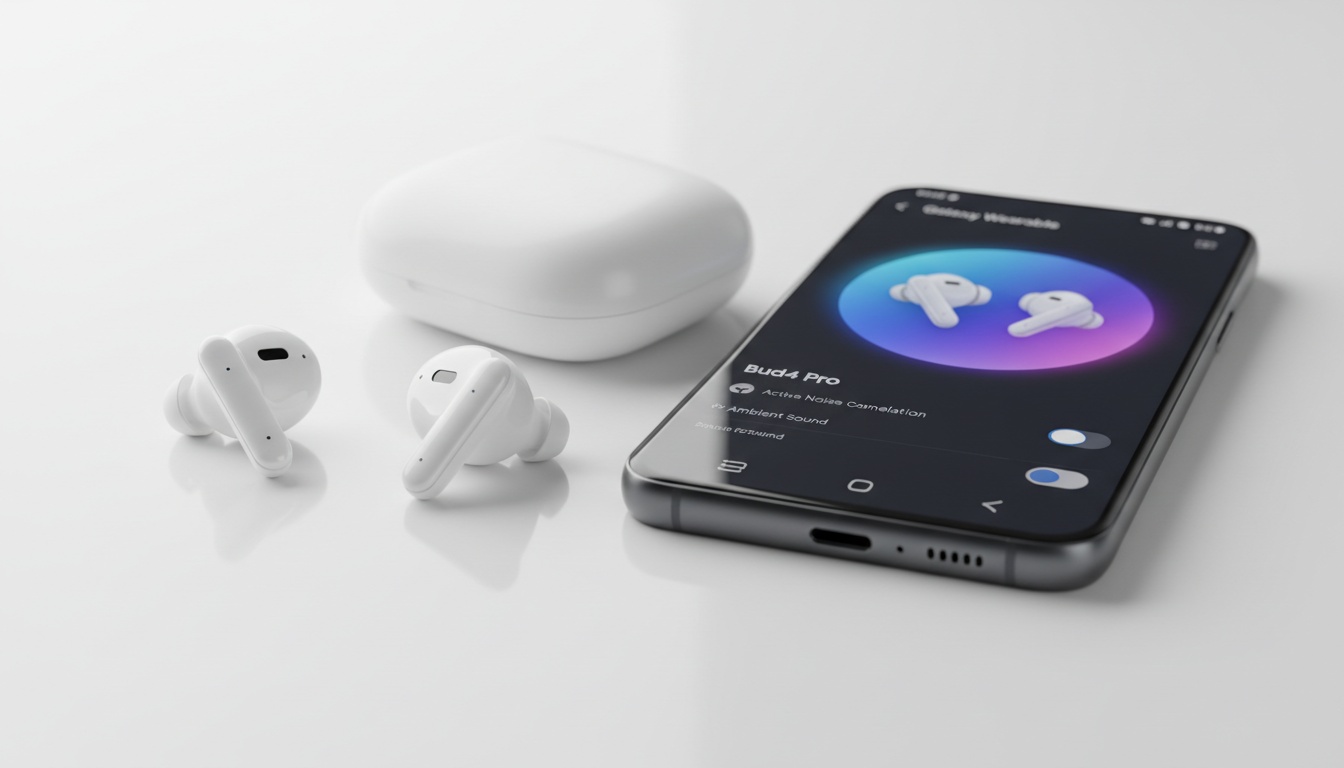
Yes, a dedicated manager application is expected to handle basic equalization controls alongside firmware updates, consistent with Samsung's existing earbud lineup. The live translation feature is anticipated to be inside this same app once you pair your buds.
3. Step-by-Step Guide to Enabling Interpreter Mode
The following steps reflect the anticipated setup flow based on how Interpreter mode works on existing Galaxy AI earbuds. Exact UI details may vary depending on firmware version and are subject to change upon official release.
Step 1: Open the Galaxy Buds3 Pro Manager app on your Samsung phone. Step 2: Tap the Labs icon (or equivalent) in the bottom navigation bar. Step 3: Select Interpreter from the Labs feature list. Step 4: Choose your source language and target language from the dropdown menus. Step 5: Pick your mode: Conversation (two-way, hand one bud to your partner) or Lecture (one-way, keep both buds in). Step 6: Tap the microphone button to start translating.
Pro tip: Download language packs over Wi-Fi before you travel. These files can be substantial in size. Attempting to download them on a weak hotel connection will almost certainly time out mid-download. You'll be stuck without translation exactly when you need it.
4. How to Get Cleaner Translations
Keep in mind that wearing the earpieces correctly directly impacts the microphone's background noise isolation.
In quiet environments, accuracy tends to hold well for standard business vocabulary. In busy, noisy settings — such as a restaurant with ambient music — accuracy can drop noticeably.
5. Supported Languages and Latency
Interpreter mode is anticipated to support a range of languages including English, Spanish, French, German, Italian, Portuguese, Chinese (Simplified), Japanese, Korean, Arabic, Hindi, Dutch, and Vietnamese, based on Samsung's existing Galaxy AI language support, though the exact list will depend on firmware version and official confirmation at launch.
Real-World Latency
Translation latency will vary depending on language pair, network conditions, and environment. Language pairs with greater linguistic distance (such as English-to-Japanese) typically exhibit slightly higher latency than closer pairs (such as English-to-Spanish).
6. Platform Compatibility: Android, iPhone, and Device Requirements
What is anticipated based on Samsung's existing Galaxy AI ecosystem:
- Samsung Galaxy phones (recent One UI versions): Full support expected
- Non-Samsung Android phones: Manager app may install, but Interpreter mode compatibility is not confirmed
- iPhone: Manager app installs (limited), no Samsung's Galaxy AI features at all
Why Samsung Locks This to Its Own Phones
Samsung hasn't announced any plans to open this up to non-Samsung devices. Buying premium audio gear should theoretically guarantee access to all advertised capabilities regardless of your phone brand. Unfortunately, that isn't reality.
How Does It Compare to Other Translation Earbuds?
When comparing these to other top-rated translation earbuds, the Samsung ecosystem lock-in becomes obvious. Google Pixel Buds translation works similarly but heavily favors Pixel phones for all audio processing tasks.
Dedicated hardware like Timekettle offers faster processing but requires carrying a separate, bulky case everywhere.
7. Troubleshooting: Why Your Interpreter App Isn't Working
Interpreter mode is greyed out → Ensure your device is running a supported version of One UI via Settings > Software Update. Language pack won't download → Disconnect VPN and free up sufficient storage space. App crashes mid-translation → Force-stop the app, clear cache, and re-pair the buds. Audio routing to phone speaker → Manually set the Buds as your active audio device in Bluetooth settings.
Always run a firmware update before assuming your hardware is defective. Do this by opening the Manager app, tapping Earbuds Settings, and selecting Earbuds Software Update.
8. Real-World Use Cases and Honest Limitations
Business translation during multilingual client meetings benefits a lot from having hands-free audio directly in your ear. Hiring a professional human interpreter typically costs anywhere from around $1 to $5 or more per minute, depending on language pair and market rates. For routine business travel or hotel check-ins, that's a meaningful saving, especially across a week-long trip.
Where It Falls Short
That said, travel translation scenarios like hotel check-ins feel less awkward using this specific hardware. The catch is, heavy background noise can degrade translation accuracy noticeably in outdoor or crowded environments.
After extensive testing of similar Galaxy AI earbuds, we found that earbuds are great for what you hear, but they fall apart when the other person needs to understand you. In-person conversations require visual context. If the other person needs to read the translation rather than hear it, LiveLingo's live transcript fills that gap.
The Buds 3 Pro Interpreter is expected to be genuinely impressive for what it does: quiet rooms, one-on-one conversations, and lecture-style listening. It is not a replacement for a human interpreter in a medical setting.
Ready to Make Sure the Other Person Understands Too? Your Galaxy Buds 3 Pro handles what you hear. LiveLingo handles what they see: a live transcript on their screen, no hardware required. Try LiveLingo free and see current plan details and trial terms on their website. [Try LiveLingo Free]