 LiveLingo
Quick Answer: How to translate a Zoom call when IT blocks the Marketplace add-in
Run LiveLingo on your personal phone next to the Zoom call. Nothing installs on the corporate laptop — no Chrome extension, no Zoom Marketplace app, no admin approval, no DLP or endpoint-monitoring flag. Zoom plays the original audio through the laptop; LiveLingo on your phone captures it, displays the translated text on the phone screen in ~1.5 s, and emails you an AI meeting memo (with the translated transcript) when the call ends. Works on any Zoom plan including free personal accounts. If you join Zoom in the browser on a Chrome you control, the LiveLingo Chrome extension captions the meeting tab directly, and to give your whole team the translation you can share a LiveLingo invite link in the Zoom chat. The IT-approved paths in 2026: Zoom Translated Captions (included in Business Plus and Enterprise plans, otherwise a paid add-on; Zoom's Voice translator reads them aloud with a separate Live Translation add-on), DeepL Voice for Meetings (enterprise), Maestra (Zoom Marketplace), Wordly or Interprefy (event scale).
Tap and speak in English
Tap to start
The Zoom Translation Landscape in 2026
If you've searched "Zoom live translation", you've probably hit a confusing mix of results: official Zoom docs about captions, App Marketplace listings for enterprise tools, and a long tail of browser extensions of varying quality. Here's how the space actually breaks down:
- Native (Zoom Translated Captions). Included in Zoom Workplace Business Plus and Enterprise plans, or as a paid add-on on other plans. Once the host's account has them on, each participant picks a caption language. Zoom's Voice translator can read them aloud with a separate Live Translation add-on.
- App Marketplace integrations. Tools like JotMe and Maestra install as a Zoom app, join your meeting as a participant, and overlay translated captions plus generate post-meeting summaries.
- Enterprise RSI / event platforms. Interprefy and Wordly hook into Zoom for large multilingual conferences. Heavy-duty pricing, but the gold standard for high-stakes multilingual events.
- Voice-grade enterprise add-ons. DeepL Voice for Meetings sends a bot into the Zoom call for live subtitles and, since September 2026, voice-to-voice translation in 30+ languages, with the translation quality DeepL is known for. Enterprise sales only.
- Browser companions. LiveLingo runs beside Zoom: a Chrome extension when you join in the browser, or a separate tab or your phone with the desktop app. Your laptop captures the audio, the companion translates and speaks it back into your ears or to the other side. No Zoom plugin, no IT approval, works from any device.
- Browser extensions / captioning workarounds. A handful of Chrome extensions overlay translated captions on Zoom. Quality varies wildly and they often break during screen sharing.
The right pick depends on your use case: a recurring two-person sales call, an internal all-hands, or a 500-person multilingual industry summit each have different best answers.
Six Options Compared in Detail
1. Zoom Translated Captions (Native)
Type: Native captions + translated captions · Languages: 35+ · Price: Included in Business Plus and Enterprise plans; paid add-on for other plans
The default option if you're already on Business Plus or Enterprise. The host's account turns translated captions on, then each participant picks a caption language in the meeting. It's good enough for routine internal meetings, weak on technical jargon and overlapping speakers. Spoken output needs the separate Voice translator add-on.
2. DeepL Voice for Meetings
Type: Meeting bot: live subtitles + voice-to-voice · Languages: 30+ · Price: DeepL Voice plans (contact sales)
Brings DeepL's industry-leading translation quality to live Zoom meetings: a DeepL bot joins the call, and participants follow live subtitles, or hear voice-to-voice translation in 30+ languages, in a DeepL browser window or desktop app. ISO 27001 certified, no audio retention. Companies including Aramark have reported 50% meeting-time reductions. Best for regulated industries (finance, legal, healthcare) that need DeepL's accuracy plus enterprise controls — but it's not aimed at individuals or small teams.
3. Maestra
Type: Zoom App Marketplace integration · Languages: 100+ translation · Price: Free trial, then $39–$79/mo per user
Installs from the Zoom App Marketplace and joins your meeting as a participant. Real-time translated captions plus automated post-meeting transcript, summary, and multilingual subtitles for recordings. Stronger language coverage than the native option, and the recording-side features make it valuable beyond live translation. Per-user pricing scales quickly for teams.
4. Interprefy
Type: Remote simultaneous interpretation (RSI) + AI hybrid · Languages: 70+ · Price: Event-scale / contact sales
The platform used by the United Nations system and Fortune 500 conferences. Hooks into Zoom for large multilingual sessions and lets attendees pick a language channel. AI captions for routine sessions, on-demand human interpreters for the high-stakes ones. Overkill for two-person calls; the right answer for a 500-person multilingual industry summit.
5. Wordly
Type: AI live captions + translation · Languages: 50+ · Price: Hour-based packs (Starter through Enterprise) / contact sales
AI-only (no human interpreters), purpose-built for live events. Integrates with Zoom for webinars, all-hands, training, and on-site events. Attendees join via a web link or scan a QR code to pick their language. Strong if your use case is recurring large-format sessions; pricing is attendee-hour based, which gets expensive for routine small meetings.
6. LiveLingo (Browser Companion)
Type: Browser-based simultaneous translation · Languages: 35 · Price: Free (3 min/day at livelingo.io/app, no account), Pro $19.99/mo (300 min), Pro+ $29.99/mo
LiveLingo doesn't install into Zoom. If you join Zoom in the browser, its Chrome extension shows the translation as captions right on the meeting tab; with the desktop app, you open it in a second browser tab or on your phone. One host can also share the live translation with the whole team through an invite link. Your laptop captures the audio, LiveLingo translates simultaneously, and either reads the translation aloud to you through earphones or sends it back into the call. The advantage over the App Marketplace tools: no IT approval, no install, no extra software on the other side. The advantage over the enterprise platforms: dramatically cheaper for one-on-one and small-team use. The trade-off: it's a workflow, not a native plugin — you switch tabs, and screen sharing requires a bit of routing care. Translated phone calls (without Zoom at all) are a bonus: dial any mobile or landline number and the other person just answers a normal call.
Side-by-Side Comparison
| Tool | Install in Zoom? | Languages | Price (entry) | Best for |
|---|---|---|---|---|
| Zoom Translated Captions | Native | 35+ | Included w/ Business Plus; add-on otherwise | Already on Business Plus or Enterprise |
| DeepL Voice | Meeting bot (DeepL Voice plan) | 30+ | Contact sales | Regulated industries |
| Maestra | Yes (Marketplace) | 100+ | $39–79/user/mo | Teams needing recordings + summaries |
| Interprefy | Yes | 70+ | Event-scale | Large multilingual conferences |
| Wordly | Yes | 50+ | Hour-based packs | Recurring webinars / all-hands |
| LiveLingo | No Zoom plugin (extension, tab or phone) | 35 | Free demo; Pro $19.99/mo | 1:1 calls, guests, whole-team sharing |
How to Turn On Zoom's Native Translation
If your account has Business Plus, Enterprise, or the Translated Captions add-on, the native option is the path of least resistance for routine meetings:
- In a meeting, click Show Captions in the meeting toolbar (CC button).
- Click the up-arrow next to it and choose Translation Settings.
- Select Speaking language (what is being spoken) and Translate to (your target).
- Captions appear at the bottom of the Zoom window for you only; other participants choose their own target languages independently.
- To enable it for your meetings: in the Zoom web portal go to Settings → In Meeting (Advanced) and turn on Translated captions (admins do the same in the Admin Center for the whole account).
Captions are text. For spoken output, Zoom's Voice translator reads translated captions aloud, but it needs a separate Live Translation add-on and an admin to turn it on.
How to Run LiveLingo Alongside a Zoom Call
The browser-companion approach takes about a minute to set up the first time and works on any plan (Zoom Basic included):
- Open your Zoom meeting in one browser tab (or in the Zoom desktop app).
- Open LiveLingo in a second browser tab. Pick your source language and the language you want to hear / send translations in.
- For one-way translation (you understand the other side): use your laptop's built-in mic for Zoom and a headset mic for LiveLingo, or vice versa. LiveLingo translates the Zoom audio and reads it back to you through earphones in your language.
- For two-way translation (both sides need it): the other person opens LiveLingo in their own browser tab beside their Zoom window, the same way. Each side speaks naturally in their own language and hears the other side translated.
- Alternative if Zoom is too noisy or screen-share-heavy: skip Zoom entirely and place a translated phone call — dial their regular number from the app; nothing to install on their side.
This setup is what gives LiveLingo its "no plugin, no install, runs anywhere" positioning. It's also why LiveLingo doesn't appear in the Zoom App Marketplace — it's not a Zoom integration, it's a parallel tool. For most one-on-one and small-team translation needs, the tab-switching is a small price for the cost and flexibility.
Joined Zoom in the browser? Use the LiveLingo Chrome extension
If you join Zoom from your browser in Chrome on a computer you control, the LiveLingo Chrome extension is the quickest setup. It captures the meeting tab's audio directly, so it works with headphones on, and shows the translation as captions over the meeting. Click the extension icon on the Zoom tab, pick the meeting language and yours, and press Start. It translates what the other participants say, not your own microphone, and it can't hear the Zoom desktop app, which plays audio outside the browser. Minutes are shared with your web account, with 3 free minutes a day and no account needed.
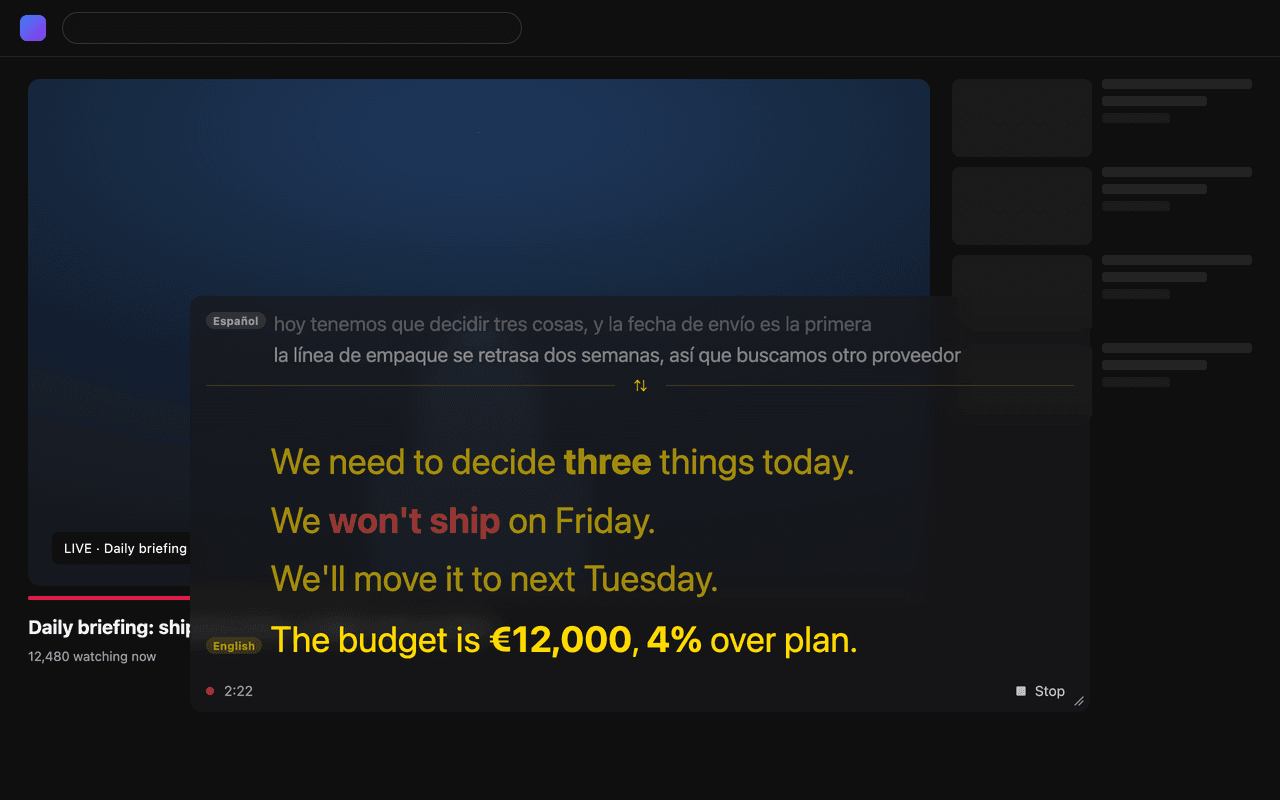
Share the translation with your whole team
When everyone on your side needs the translation, one person runs it and shares it. Start a session in the latest LiveLingo app on iPhone or Android (Pro or free trial), tap the gold Invite button, and paste the link into the Zoom chat. Teammates open the link in the LiveLingo app and follow the same live translation on their own phones, up to 20 people per session. The link closes when the host stops. Viewers on a free account get 3 sessions per device; paid accounts are unlimited. It also works in a meeting room where several people share one laptop.
Which Option Fits Your Use Case
- You're already on Zoom Business Plus or Enterprise. Start with Translated Captions. If accuracy or language coverage isn't enough, layer on Maestra for marketplace integration plus post-meeting summaries.
- You run regular cross-language calls (1:1 or small team) and don't want to pay enterprise pricing. Use LiveLingo as a browser companion. $19.99/mo Pro covers 300 minutes plus translated phone calls and AI memos.
- You're in a regulated industry (legal, healthcare, finance). DeepL Voice for Meetings. ISO 27001, no audio retention, the highest-accuracy voice option.
- You're running a large multilingual conference or industry summit. Interprefy or Wordly. Pick Interprefy if you want a human-interpreter option for keynotes; Wordly if you're AI-only.
- Everyone on your side needs the translation. One person runs LiveLingo and shares the invite link in the Zoom chat; up to 20 teammates follow on their own phones.
- You need translated phone calls, not just Zoom calls. LiveLingo is the only tool in this list that does both — translated calls to regular phone numbers, with the recipient simply answering a normal call, no app on their end.
Frequently Asked Questions
Can I add live translation to a Zoom call if my company blocks the Zoom Marketplace and third-party plugins?
Yes. The workaround is to run LiveLingo on your personal phone, not on the corporate laptop. The phone microphone picks up the Zoom audio playing from the laptop speaker; the phone shows the translated text on its own screen. Nothing installs on the work machine — no Chrome extension, no Marketplace app, no add-in, no admin console changes. Corporate DLP, endpoint monitoring, and firewall rules do not see it because the translation traffic goes over your phone's network. You still get an AI meeting memo emailed to you when the call ends.
Does anything install on my work laptop when I use LiveLingo with Zoom?
No. LiveLingo runs in a browser (livelingo.io/app) or on your personal phone, with no desktop app, no Zoom Marketplace listing and no admin approval flow. The optional LiveLingo Chrome extension is for browser meetings on a Chrome you control; skip it on a managed work laptop. In the personal-phone method, the work laptop never touches LiveLingo at all — it only runs Zoom as it always has. In the second-browser-tab method, LiveLingo runs in a regular browser tab like any other website; nothing is installed, nothing modifies Zoom, and nothing writes to disk outside standard browser cookies.
Will LiveLingo show up in DLP or corporate endpoint monitoring?
The personal-phone method does not touch the corporate laptop's network stack, so DLP and endpoint monitoring never see it — the translation traffic goes over your phone's cellular or personal Wi-Fi. In the second-browser-tab-on-laptop method, LiveLingo appears in browser telemetry the same way any visited website does (an HTTPS session to livelingo.io); it does not exfiltrate meeting data through Zoom or through corporate email. If your organization's policy specifically requires that no meeting audio leave the machine, the personal-phone method is the compliant path.
Does Zoom have built-in live translation?
Yes. Zoom Translated Captions are included in Zoom Workplace Business Plus, Enterprise Essentials, Enterprise Plus and Enterprise Premier, and other paid plans can add them with the Translated Captions add-on. The host's account turns them on, then each participant picks their own caption language, with 35+ languages including Japanese. Zoom's Voice translator can also read translated captions aloud, but it needs a separate Live Translation add-on and an admin to enable it.
Can I get live translation in a Zoom call without installing a plugin?
Yes. The browser-based approach is the simplest: open LiveLingo in a second tab while your Zoom call is running and route your laptop's audio through it. You get real-time voice translation in 35 languages without installing a Zoom marketplace app, requesting IT approval, or asking the other side to install anything. Zoom's own Translated Captions are also no-install, but they require Business Plus, Enterprise, or a paid add-on.
How accurate is Zoom's native translation?
Zoom's translated captions work well for standard accents and common language pairs (English↔Spanish, French, German, Japanese, Mandarin). Accuracy drops with strong regional accents, technical jargon, and overlapping speakers. For high-stakes negotiations, pair it with a human interpreter or a more specialized tool like Interprefy or Wordly.
What's the cheapest way to translate a Zoom meeting?
For occasional one-on-one calls, the free options are: (a) Zoom Translated Captions if you're on Business Plus or Enterprise, (b) LiveLingo's free 3-minute daily trial at livelingo.io/app, or (c) the LiveLingo Chrome extension (same free 3 minutes a day) when you join Zoom in the browser. For regular meetings, LiveLingo Pro at $19.99/mo (300 minutes including translated phone calls) is the most cost-effective non-enterprise option.
Can both participants speak their own languages in Zoom?
Yes, with the right tool. Zoom Translated Captions handle this when the host has both languages enabled. LiveLingo detects both source and target language automatically — both speakers talk naturally, the other side sees and hears the translation in their language. JotMe, Maestra, and DeepL Voice also support bidirectional caption translation in Zoom.
Are Zoom translated captions free?
No. They are included in Zoom Workplace Business Plus, Enterprise Essentials, Enterprise Plus and Enterprise Premier. Other paid plans need the Translated Captions add-on, priced through Zoom sales, and the free Basic plan does not include them. Same-language automated captions are available more widely, but they do not translate.
Does the LiveLingo Chrome extension work with Zoom?
Yes, when you join Zoom in the browser (Join from your browser) in Chrome. The extension captures the meeting tab's audio, so it works with headphones on, and shows the translation as captions over the meeting. It translates what other participants say, not your own microphone. It can't hear the Zoom desktop app, which plays audio outside the browser; for that, open livelingo.io/app in a second tab or use the phone app.
Can my whole team see the translation in a Zoom meeting?
Yes. One person starts a session in the LiveLingo app on iPhone or Android, taps Invite, and pastes the link into the Zoom chat. Everyone who opens it in the LiveLingo app follows the same live translation on their own phone, up to 20 people per session. Viewers on a free account get 3 sessions per device; paid accounts are unlimited.
Can a translation tool keep up with multiple speakers on a Zoom call?
Zoom discussions jump between participants, and turn-based translators fall behind when people talk in quick succession. LiveLingo streams continuously and follows speaker changes and interruptions in real time, so the translation keeps pace instead of lagging a turn behind. Run it in a second browser tab alongside Zoom; the other participants install nothing.
Try LiveLingo Alongside Your Next Zoom Call
No plugin, no Marketplace approval, no install on the other side. Open LiveLingo in a tab next to your Zoom meeting and translate in 35 languages. Free 3-minute daily trial at livelingo.io/app with no account, no credit card. Pro at $19.99/mo unlocks 300 minutes, translated phone calls (dial any number — no app for the other side), and AI meeting memos.
Start Translating Free