 LiveLingo
Quick Answer: Microsoft Teams Live Translated Captions in 2026
Microsoft Teams Live Translated Captions need a Teams Premium ($10/user/mo) or Microsoft 365 Copilot license in 2026, and the organizer's license covers everyone in the meeting, guests included. Each participant picks their own caption language from 50+. For spoken translation, the Interpreter agent reads the meeting aloud in 9 languages, but every listener needs a Microsoft 365 Copilot license and guests can't use it. Without those licenses, run LiveLingo beside the call: the Chrome extension for Teams on the web, or a second tab or your phone for the desktop app. To give your whole team the translation, share a LiveLingo invite link in the meeting chat. Other options: a Teams App Marketplace add-on like Maestra, or DeepL Voice for Meetings (enterprise).
Tap and speak in English
Tap to start
The Teams Translation Landscape in 2026
Microsoft Teams has the most native translation capability of any major video platform — but the best parts are locked behind Teams Premium and Microsoft 365 Copilot licensing. Here's how the options actually break down:
- Native: Live Translated Captions. Teams Premium or Microsoft 365 Copilot feature. If the organizer is licensed, everyone in the meeting can turn them on, guests included, and each participant picks their own caption language.
- Native: Interpreter agent. Speech-to-speech translation in 9 languages, including Japanese. Each listener needs a Microsoft 365 Copilot license (20 hours a month included); guests and anonymous attendees can't use it, and Microsoft says it isn't optimized for rapid back-and-forth.
- DeepL Voice for Meetings. A DeepL bot joins the meeting and gives participants live subtitles and, since September 2026, voice-to-voice translation in 30+ languages. Sold as DeepL Voice plans; ISO 27001 certified.
- Teams App Marketplace integrations. Maestra and similar tools install as a Teams app, join the meeting as a participant, and add translated captions plus post-meeting summaries.
- Enterprise event platforms. Interprefy and Wordly plug into Teams for large multilingual webinars and all-hands. Pricing is event-scale.
- Browser companions. LiveLingo runs beside Teams: a Chrome extension for Teams on the web, or a second tab or your phone for the desktop app. Works on any plan, including free Teams accounts. No IT approval, no Marketplace install, no software on the other side.
Microsoft has invested heavily in native translation, so for enterprise customers already on Teams Premium or Microsoft 365 Copilot the right answer is usually "turn on Live Translated Captions and you're done." For everyone else — small teams, freelancers, ad-hoc cross-language meetings — the picture is more nuanced.
Five Options Compared in Detail
1. Teams Live Translated Captions (Native, Premium/Copilot)
Type: Native translated captions · Languages: 50+ · Price: Teams Premium ($10/user/mo) or Microsoft 365 Copilot
The default option if your organization is on the right Microsoft tier. Each participant picks a personal target language, and captions appear in real time at the bottom of the meeting window. Strong accuracy for common pairs, weaker on technical jargon. For spoken translation, the separate Interpreter agent needs a Copilot license per listener. Best when the friction of any third-party tool isn't worth it.
2. DeepL Voice for Meetings
Type: Meeting bot: live subtitles + voice-to-voice · Languages: 30+ · Price: DeepL Voice plans (contact sales)
Brings DeepL's translation quality to Teams: a DeepL bot joins the meeting, and participants follow live subtitles, or hear voice-to-voice translation in 30+ languages, in a DeepL browser window or desktop app. Your organization must allow external participants so the bot can join. ISO 27001 certified, no audio retention, SSO integration. Companies including Aramark report cutting international meeting times in half with DeepL Voice. Best fit: regulated industries (finance, legal, healthcare) where Microsoft's native option isn't accurate enough or doesn't meet compliance requirements.
3. Maestra
Type: Teams App Marketplace integration · Languages: 100+ translation · Price: Free trial, then $39–$79/mo per user
Adds translated captions inside Teams and generates a full post-meeting transcript, AI summary, and multilingual subtitles for any recording. Strong choice for teams that record meetings regularly and want translation plus recording-side processing in one tool. Per-user pricing scales quickly for larger teams.
4. Interprefy & Wordly (Enterprise Event Platforms)
Type: Conference-grade translation · Languages: 50–70+ · Price: Event-scale / contact sales
Both integrate with Teams for large multilingual webinars, town halls, and external events. Interprefy adds on-demand human interpreters to the AI baseline (the option used at UN-level events). Wordly is AI-only, sold in attendee-hour packs. Aimed at events with 50+ attendees in multiple languages — overkill for routine meetings.
5. LiveLingo (Browser Companion)
Type: Browser-based simultaneous translation · Languages: 35 · Price: Free (3 min/day at livelingo.io/app, no account), Pro $19.99/mo (300 min), Pro+ $29.99/mo
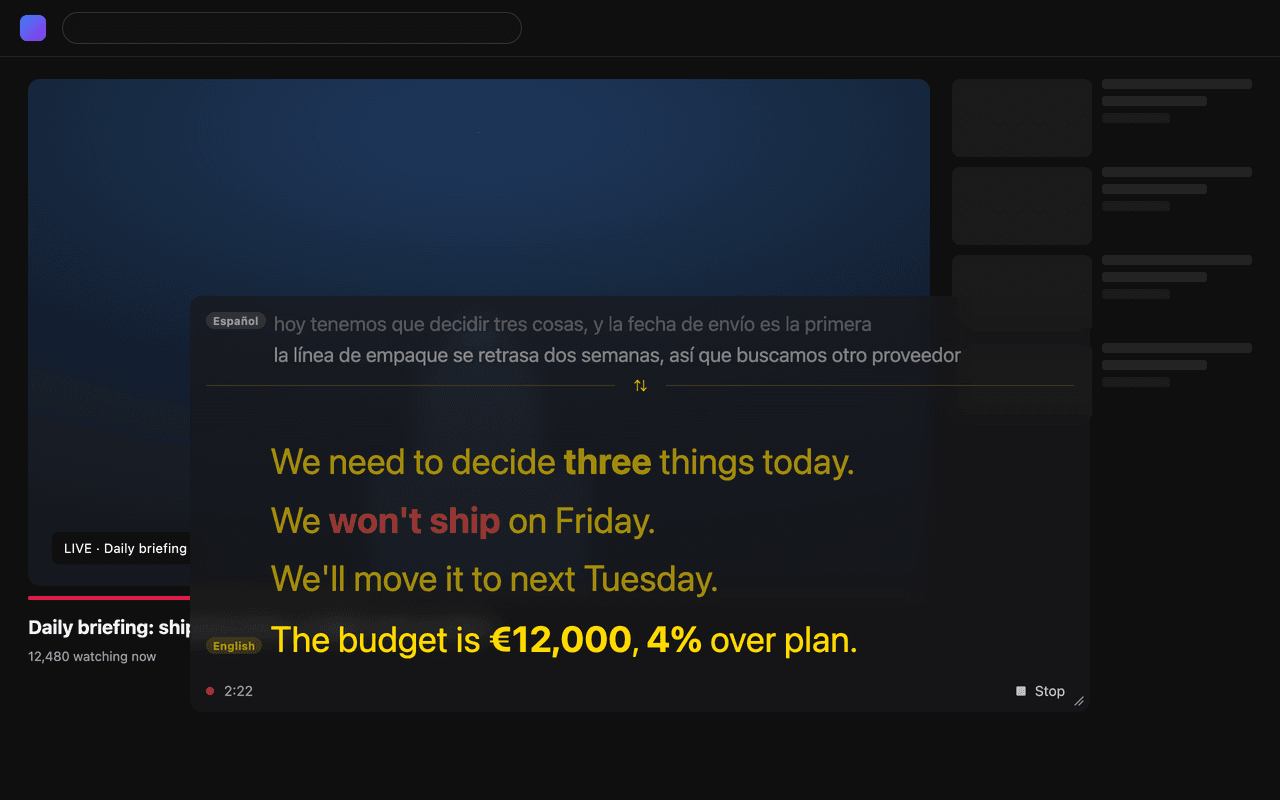
LiveLingo isn't in the Teams App Marketplace and doesn't require IT approval. On Teams for the web, its Chrome extension shows the translation as captions right on the meeting tab; with the desktop app, you open it in a second browser tab or on your phone. One host can also share the live translation with the whole team through an invite link. Your laptop captures the audio, LiveLingo translates simultaneously, and either reads the translation aloud to you through earphones or sends it back. Works on any Teams plan including free accounts. The trade-off: it's tab-switching workflow, not a native plugin. The upside: dramatically cheaper than enterprise options and doesn't require the other side to install anything.
Side-by-Side Comparison
| Tool | Teams plan needed | Languages | Price (entry) | Best for |
|---|---|---|---|---|
| Live Translated Captions (Native) | Teams Premium / Copilot | 50+ | $10/user/mo (Premium) | Orgs already on Premium or Copilot |
| Interpreter agent (Native, spoken) | Copilot license per listener | 9 | Microsoft 365 Copilot | Presentation-style meetings, no guests |
| DeepL Voice | Any (DeepL Voice plan) | 30+ | Contact sales | Regulated industries |
| Maestra | Any (Marketplace install) | 100+ | $39–79/user/mo | Teams + post-meeting summaries |
| Interprefy / Wordly | Any | 50–70+ | Event-scale | Large multilingual events |
| LiveLingo | Any (no Teams install) | 35 | Free demo; Pro $19.99/mo | Small teams, guests, whole-team sharing, no IT approval |
How to Turn On Teams Live Translated Captions
If the meeting organizer (or you) has Teams Premium or Microsoft 365 Copilot, this is the lowest-friction option:
- In a Teams meeting, click More actions (…) → Language and speech → Turn on live captions.
- Once captions appear, click the gear icon next to them and choose Caption settings.
- Select Spoken language (what is being spoken in the meeting) and Translate to (your personal target).
- Each participant repeats this independently — captions are per-viewer, so a French speaker and a Japanese speaker on the same call each see captions in their own language.
- For organization-wide enablement: in the Teams admin center, go to Meeting policies and enable Translated live captions in your meeting policy.
Captions are text only. For spoken translation, Teams' Interpreter agent (More actions → Language and speech → Interpreter → Turn on for me) needs a Microsoft 365 Copilot license for each listener, and guests or anonymous attendees can't use it.
How to Run LiveLingo Alongside a Teams Call
The browser-companion approach takes about a minute to set up the first time and works on any Teams plan, free included:
- Open your Teams meeting in one browser tab (or in the Teams desktop app).
- Open LiveLingo in a second browser tab. Pick your source and target languages.
- For one-way translation (you understand the other side): use earphones — LiveLingo speaks the translated audio into your ear while the Teams call plays the original.
- For two-way translation: the other person opens LiveLingo in their own browser tab beside their Teams window, the same way. Each person speaks naturally and hears the other side translated.
- Alternative path entirely: skip Teams and place a translated phone call — dial their regular number from the app; the other side just answers a normal call, no install on their end.
This is the right pick when you need translation but can't get IT approval for a Teams Marketplace app, when the other side is external (no shared M365 tenant), or when the cost of a Teams Premium upgrade isn't justified.
Teams on the web? Use the LiveLingo Chrome extension
If you join Teams in Chrome on a computer you control, the LiveLingo Chrome extension is the quickest setup. It captures the meeting tab's audio directly, so it works with headphones on, and shows the translation as captions over the meeting. Click the extension icon on the Teams tab, pick the meeting language and yours, and press Start. It translates what the other participants say, not your own microphone, and it can't hear the Teams desktop app, which plays audio outside the browser. Minutes are shared with your web account, with 3 free minutes a day and no account needed.
Share the translation with your whole team
When everyone on your side needs the translation, one person runs it and shares it. Start a session in the latest LiveLingo app on iPhone or Android (Pro or free trial), tap the gold Invite button, and paste the link into the Teams meeting chat. Teammates open the link in the LiveLingo app and follow the same live translation on their own phones, up to 20 people per session. The link closes when the host stops. Viewers on a free account get 3 sessions per device; paid accounts are unlimited. It also works in a meeting room where several people share one laptop.
Which Option Fits Your Use Case
- Your organization is on Teams Premium or Microsoft 365 Copilot. Start with native Live Translated Captions. Layer on DeepL Voice if you need higher accuracy for regulated work.
- You're on standard Microsoft 365 (no Premium). LiveLingo beside the call: the Chrome extension for Teams on the web, or a second tab or your phone for the desktop app.
- You're a small team or freelancer using Teams free or your client's tenant. LiveLingo browser companion. No install, no plan upgrade, no IT ticket.
- You're in finance, legal, or healthcare. DeepL Voice for Meetings. Compliance plus accuracy beats Microsoft's native option for high-stakes work.
- You're running a multilingual all-hands or external webinar. Interprefy (if you want human-interpreter backup) or Wordly (AI-only).
- Everyone on your side needs the translation. One person runs LiveLingo and shares the invite link in the meeting chat; up to 20 teammates follow on their own phones.
- You need translated phone calls as well as Teams calls. LiveLingo — it's the only tool here that does both.
Frequently Asked Questions
Can I add live translation to a Teams call if my company blocks Teams add-ins and admin extensions?
Yes. The workaround is to run LiveLingo on your personal phone, not on the corporate laptop. The phone microphone captures the Teams audio playing from the laptop speaker; the phone shows the translated text on its own screen and can email you an AI meeting memo afterward. Nothing installs on the work machine — no Teams admin center consent, no App Source approval, no MSI push, no Chrome extension. Corporate DLP and endpoint monitoring do not see it because the translation traffic goes over the phone's network. This is the most common path for regulated industries, government contractors, and any Fortune 500 environment where Teams Premium is not licensed org-wide.
Does anything install on my work laptop when I use LiveLingo with Microsoft Teams?
No. LiveLingo runs in a browser (livelingo.io/app) or on your personal phone — there is no desktop app, no Teams App Source listing, no admin center consent flow, no MSI installer. In the personal-phone method, the work laptop never touches LiveLingo at all; Teams runs exactly as it always has. In the second-browser-tab method, LiveLingo appears in browser telemetry the same way any visited website does, without modifying Teams or the corporate machine's configuration.
Will LiveLingo appear in Microsoft Purview, DLP, or endpoint monitoring reports?
The personal-phone method does not touch the corporate laptop's network or storage, so Purview, DLP, and endpoint monitoring never see it — the translation traffic is on your phone's cellular or personal Wi-Fi. In the second-browser-tab-on-laptop method, LiveLingo appears in browser telemetry as an HTTPS session to livelingo.io; it does not exfiltrate meeting data through Teams, Outlook, or corporate email. If your organization's policy specifically prohibits meeting audio leaving the machine over any channel, use the personal-phone method — it satisfies the strictest interpretation of that policy.
How much do Microsoft Teams Live Translated Captions cost in 2026?
Teams Live Translated Captions need Teams Premium ($10/user/month, paid yearly) or a Microsoft 365 Copilot license. If the meeting organizer has one, everyone in that meeting can use translated captions, guests included; if only some participants are licensed, only they get them. There is no per-minute fee. Free Teams and standard Microsoft 365 business plans include same-language Live Captions only. Spoken translation through the Interpreter agent needs a Microsoft 365 Copilot license for each listener, with 20 hours per user per month included.
What languages do Microsoft Teams Live Translated Captions support in 2026?
Microsoft says organizers can choose up to six meeting languages, or ten with Teams Premium, from more than 50 supported languages, and each participant picks their own caption language independently, so a French speaker and a Japanese speaker on the same call can each read captions in their own language. The Interpreter agent, which speaks the translation aloud, covers 9 languages: Chinese (Mandarin), English, French, German, Italian, Japanese, Korean, Portuguese and Spanish. The exact lists update on Microsoft Learn.
When did Microsoft Teams Live Translated Captions become available?
Live Translated Captions launched to Teams Premium customers in 2023 and expanded through 2024 to 2026. As of 2026 they work in Teams for Windows, macOS, iOS, Android and the web. The Interpreter agent for spoken translation runs in scheduled meetings, channel meetings and 1:1 Teams calls, but not in Teams events, phone (PSTN) calls or Teams free.
What are the official Microsoft Teams Live Translated Captions requirements in 2026?
Requirements as of 2026: (1) a Teams Premium or Microsoft 365 Copilot license, either for the meeting organizer, which covers every participant including guests, or for the individual participant, which covers only them, (2) a supported Teams client (Windows, macOS, iOS, Android or web), (3) live captions turned on in the meeting, and (4) each participant choosing their caption language. Admins can restrict translated captions through meeting policies in the Teams admin center.
Does Microsoft Teams have built-in live translation?
Yes, two features. Live Translated Captions (Teams Premium or Microsoft 365 Copilot) show translated text, with each participant choosing from 50+ languages. The Interpreter agent speaks the translation aloud in 9 languages, but every listener needs a Microsoft 365 Copilot license, guests and anonymous attendees can't use it, and Microsoft notes it isn't optimized for rapid back-and-forth or overlapping speech.
What's the difference between Live Captions and Live Translated Captions in Teams?
Live Captions transcribe what is being said into text in the same language. Live Translated Captions go one step further and translate that text into your chosen language. Live Captions are included in standard Microsoft 365 business plans; Live Translated Captions require Teams Premium or a Microsoft 365 Copilot license.
Can I translate Teams meetings without Teams Premium?
Yes. Options that don't require Premium: (a) use a Teams App Marketplace add-on like Maestra, (b) run LiveLingo beside the call: the Chrome extension for Teams on the web, or a second tab or your phone for the desktop app (works on any plan, including free), or (c) use DeepL Voice for Meetings (sold as DeepL Voice plans, no Teams Premium needed).
How accurate is Microsoft Teams translation?
Teams Live Translated Captions use the same Microsoft Speech and Translator backend as Office and Microsoft Translator. Accuracy is strong for common pairs (English, Spanish, French, German, Mandarin, Japanese) and weaker for low-resource languages and technical vocabulary. For regulated industries needing higher accuracy plus compliance, DeepL Voice is the stronger option.
Can both participants speak their own languages in Teams?
Yes. Each viewer in Teams Live Translated Captions picks their own target language independently, so a French speaker and a Japanese speaker on the same call can each read captions in their own language. LiveLingo and Maestra also support bidirectional translation. DeepL Voice supports bidirectional captioning for enterprise customers.
Does the LiveLingo Chrome extension work with Teams?
Yes, when you join Teams in Chrome on the web. The extension captures the meeting tab's audio, so it works with headphones on, and shows the translation as captions over the meeting. It translates what other participants say, not your own microphone. It can't hear the Teams desktop app, which plays audio outside the browser; for that, open livelingo.io/app in a second tab or use the phone app.
Can my whole team see the translation in a Teams meeting?
Yes. One person starts a session in the LiveLingo app on iPhone or Android, taps Invite, and pastes the link into the Teams meeting chat. Everyone who opens it in the LiveLingo app follows the same live translation on their own phone, up to 20 people per session. Viewers on a free account get 3 sessions per device; paid accounts are unlimited.
Can a translation tool keep up with multiple speakers in a Teams meeting?
Meetings are inherently multi-speaker, and turn-based translators fall behind the moment two people go back and forth. LiveLingo streams continuously and follows speaker changes and interruptions in real time, so the translation keeps pace as the discussion moves between participants rather than lagging a turn behind. Run it in a second browser tab beside Teams; the other side installs nothing.
Try LiveLingo Alongside Your Next Teams Call
Works on any Teams plan, including free. Open LiveLingo in a tab next to your Teams meeting and translate in 35 languages. No Marketplace install, no IT approval, no software on the other side. Free 3-minute daily trial at livelingo.io/app, no credit card. Pro at $19.99/mo unlocks 300 minutes, translated phone calls, and AI meeting memos.
Start Translating Free