 LiveLingo
Quick Answer: How to translate a Google Meet call when your Workspace admin blocks add-ons
Run LiveLingo on your personal phone next to the Google Meet call. Nothing installs on the corporate laptop — no Chrome extension, no Google Workspace Marketplace app, no admin console approval, no DLP or endpoint monitoring flag. Meet plays the original audio through the laptop; LiveLingo on your phone captures it, displays the translated text on the phone screen in ~1.5 s, and emails an AI meeting memo (with translated transcript) when the call ends. Works on any Google Meet plan including personal Google accounts and Workspace Individual — the tiers that do NOT get native translated captions. If your Workspace admin has enabled the paid path, native Google Meet Translated Captions are included on Business Standard ($14/user/mo) and above, covering 70+ languages; Meet's Speech Translation speaks the translation aloud only between English and five European languages. On a Chrome you control, the LiveLingo Chrome extension captions the Meet tab directly on any Google account, and you can share the live translation with your whole team through an invite link.
Tap and speak in English
Tap to start
The Google Meet Translation Landscape in 2026
Google Meet was an early mover on translated captions — they've been GA on paid Workspace plans since 2022 and have expanded steadily to 70+ languages. But two limitations push many users to layer on a second tool: spoken translation covers only English paired with five European languages, and personal Google accounts (and Workspace Individual / Starter) don't get translated captions at all.
- Native: Google Meet translated captions. Workspace Business Standard, Business Plus, Enterprise Starter, Enterprise Standard, Enterprise Plus and Google AI Pro for Education. Each viewer picks a personal target language.
- Native: Speech Translation. Speaks your words in the other language in a voice like yours, between English and Spanish, French, German, Italian or Portuguese only. Google AI Pro or Ultra and Workspace Business Standard and above; one language pair per meeting, 90 minutes per meeting.
- Maestra. Integrates with Meet, joins as a participant, adds translated captions plus a post-meeting transcript and AI summary with multilingual exports.
- Interprefy & Wordly. Enterprise event platforms for large multilingual webinars, all-hands, and external conferences. They plug into Meet for the same reasons they do for Zoom and Teams.
- LiveLingo (browser companion). Runs as a Chrome extension right on the Meet tab, or in a second tab or on your phone. Works on any Meet plan — including personal Google accounts. Spoken translation, not just captions.
- Other Chrome extensions. A long tail of extensions overlay translated captions. Quality is inconsistent and they often break during screen sharing.
Five Options Compared in Detail
1. Google Meet Translated Captions (Native)
Type: Native translated captions · Languages: 70+ · Price: Included in Workspace Business Standard ($14/user/mo) and above
The default when you're on a qualifying Workspace plan. One click in the meeting controls, each viewer picks a target language. Captions appear at the bottom of the Meet window. Best when Meet is your default platform and you don't need spoken translation back into the call.
2. Maestra
Type: Meet integration (bot joins meeting) · Languages: 100+ translation · Price: Free trial, then $39–$79/mo per user
Maestra's bot joins your Meet call as a participant, captures the audio, and adds translated captions plus a full post-meeting deliverable: transcript, AI summary, multilingual subtitles for the recording. Strong fit when you want translation plus all the recording-side outputs in one tool. Per-user pricing scales quickly for larger teams.
3. Interprefy & Wordly (Enterprise Event Platforms)
Type: Conference-grade translation · Languages: 50–70+ · Price: Event-scale / contact sales
Both integrate with Meet for large multilingual events. Interprefy adds on-demand human interpreters on top of AI captions (the model used at UN-level conferences). Wordly is AI-only, sold in attendee-hour packs. Pick these when your event is 50+ attendees in multiple languages — overkill for one-on-one calls.
4. LiveLingo (Browser Companion)
Type: Browser-based simultaneous translation · Languages: 35 · Price: Free (3 min/day at livelingo.io/app, no account), Pro $19.99/mo (300 min), Pro+ $29.99/mo
LiveLingo's Chrome extension captions the Meet tab directly, or you can run it in a separate browser tab or on your phone. Works on any Meet plan including personal Google accounts — no Workspace upgrade required. Your laptop captures the audio, LiveLingo translates simultaneously, and either reads the translation aloud to you or sends it back into the call. The big difference from Meet's native options: it works on any account and in any of its 35 languages, including Japanese, Chinese and Korean. One host can also share the live translation with the whole team through an invite link.
5. Other Chrome Extensions (Honorable Mention)
Type: Browser extension overlay · Languages: Varies · Price: Most free or freemium
A handful of Chrome extensions promise translated Meet captions for free. They work — sometimes. Common issues: they break during screen sharing, lag noticeably, and stop updating when Google ships Meet UI changes. Worth trying for one-off personal calls; not reliable enough for business use.
Side-by-Side Comparison
| Tool | Works on free Google? | Languages | Price (entry) | Best for |
|---|---|---|---|---|
| Meet Translated Captions (Native) | No, needs Business Standard+ | 70+ | $14/user/mo (Workspace) | Workspace orgs on paid plans |
| Maestra | Yes (with Meet integration) | 100+ | $39–79/user/mo | Teams needing transcripts + summaries |
| Interprefy / Wordly | Yes | 50–70+ | Event-scale | Large multilingual events |
| LiveLingo | Yes — any plan | 35 | Free demo; Pro $19.99/mo | Personal accounts, small teams, whole-team sharing |
| Other Chrome extensions | Yes | Varies | Free / freemium | One-off personal calls (with caveats) |
How to Turn On Google Meet Translated Captions
If your account is on Workspace Business Standard or above, this is the lowest-friction option:
- In a Meet call on a computer, open More options → Settings → Captions.
- Under Language of the meeting, choose the language being spoken.
- Turn on Translated captions and select the language you want to read.
- Each viewer in the meeting sets their own target independently — Meet handles per-viewer language selection automatically.
- For organization-wide enablement: a Workspace admin can enable translated captions in the Google Admin console under Apps → Google Workspace → Google Meet → Meet video settings.
Captions are text. Meet's Speech Translation speaks the translation aloud, but only between English and Spanish, French, German, Italian or Portuguese; for other languages use LiveLingo (next section) or Maestra.
How to Run LiveLingo Alongside a Google Meet Call
Works on any Google account, including personal and free Workspace plans:
- Open your Google Meet call in one browser tab.
- Open LiveLingo in a second browser tab. Pick your source and target languages.
- For one-way translation: wear earphones — LiveLingo speaks the translated audio into your ear while Meet plays the original.
- For two-way translation: the other person opens LiveLingo in their own browser tab beside their Meet window, the same way. Each person speaks naturally and hears the other side translated.
- If you don't need Meet at all: place a translated phone call instead — dial their regular number from the app; no Meet, no Workspace plan, nothing to install for the other side.
The best fit for Meet: the LiveLingo Chrome extension
Meet runs in a Chrome tab, so the LiveLingo Chrome extension is the quickest setup. It captures the meeting tab's audio directly, so it works with headphones on, and shows the translation as captions over the meeting, on personal Google accounts and any Workspace plan. Click the extension icon on the Meet tab, pick the meeting language and yours, and press Start. It translates what the other participants say, not your own microphone. On a managed work laptop that blocks extensions, use the phone method instead. Minutes are shared with your web account, with 3 free minutes a day and no account needed.
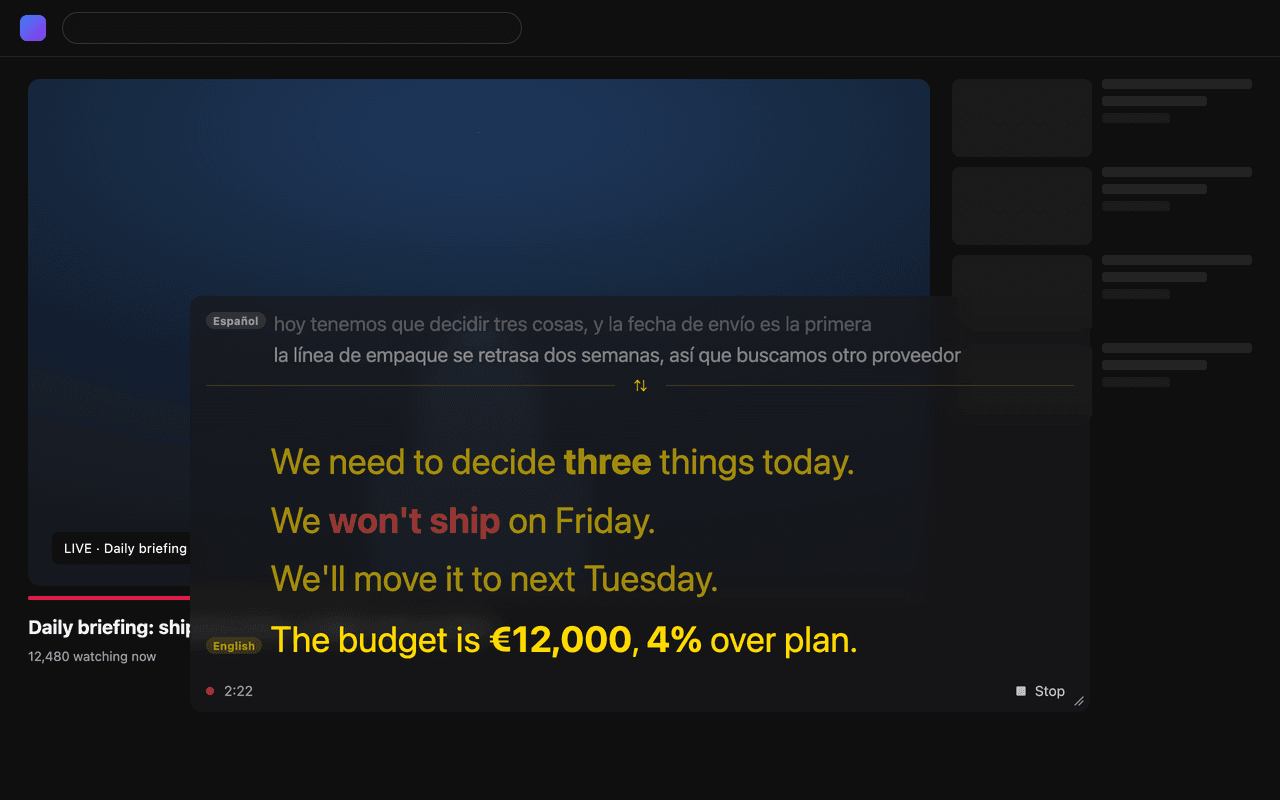
Share the translation with your whole team
When everyone on your side needs the translation, one person runs it and shares it. Start a session in the latest LiveLingo app on iPhone or Android (Pro or free trial), tap the gold Invite button, and paste the link into the Meet chat. Teammates open the link in the LiveLingo app and follow the same live translation on their own phones, up to 20 people per session. The link closes when the host stops. Viewers on a free account get 3 sessions per device; paid accounts are unlimited. It also works in a meeting room where several people share one laptop.
Which Option Fits Your Use Case
- You're on Workspace Business Standard or above. Use native translated captions. If you need recordings, summaries, or transcripts on top, add Maestra.
- You're on Workspace Starter, Individual, or a personal Google account. Native translated captions are unavailable — LiveLingo as a browser companion is the simplest answer. No Workspace upgrade required.
- You need spoken translation, not just captions. Meet's Speech Translation covers only English with five European languages; for anything else, LiveLingo or Maestra.
- Everyone on your side needs the translation. One person runs LiveLingo and shares the invite link in the Meet chat; up to 20 teammates follow on their own phones.
- You're running a multilingual event (50+ attendees, multiple languages). Interprefy or Wordly.
- You need translated phone calls in addition to Meet calls. LiveLingo — it's the only tool here that handles both.
Frequently Asked Questions
Can I add live translation to a Google Meet call if my Workspace admin blocks third-party add-ons and Chrome extensions?
Yes. The workaround is to run LiveLingo on your personal phone, not on the corporate laptop. The phone microphone captures the Meet audio playing from the laptop speaker; the phone shows the translated text on its own screen and emails you an AI meeting memo afterward. Nothing installs on the work machine — no Google Workspace Marketplace app, no admin console approval, no Chrome extension push. This works for Workspace Individual and personal Google accounts as well, where native Translated Captions are not available at all.
Does anything install on my work laptop when I use LiveLingo with Google Meet?
No. LiveLingo runs in a browser (livelingo.io/app) or on your personal phone, with no desktop app, no Google Workspace Marketplace listing and no admin console approval flow. The optional LiveLingo Chrome extension is for Meet on a Chrome you control; skip it on a managed work laptop. In the personal-phone method, the work laptop never touches LiveLingo at all; Meet runs exactly as it always has. In the second-browser-tab method, LiveLingo appears in browser telemetry the same way any visited website does, without modifying Meet or the corporate machine's configuration.
Will LiveLingo appear in Google Workspace admin audit logs or Chrome enterprise reporting?
The personal-phone method does not touch the corporate laptop's network or storage, so Workspace audit logs and Chrome enterprise reporting never see it — the translation traffic is on your phone's cellular or personal Wi-Fi. In the second-browser-tab-on-laptop method, LiveLingo appears as a regular HTTPS visit to livelingo.io in Chrome's enterprise telemetry; it does not exfiltrate meeting data through Meet, Gmail, or Drive. If your organization's policy prohibits meeting audio leaving the machine, use the personal-phone method — it satisfies the strictest interpretation.
How much do Google Meet translated captions cost in 2026?
Google Meet translated captions are included at no additional charge on Google Workspace Business Standard ($14/user/mo), Business Plus ($22/user/mo), Enterprise Starter, Enterprise Standard, Enterprise Plus and Google AI Pro for Education in 2026. There is no per-meeting or per-minute fee. Personal Google accounts, Business Starter and Workspace Individual get same-language captions only; for translation there, use a companion like LiveLingo, whose Chrome extension captions the Meet tab on any Google account.
What languages do Google Meet translated captions support in 2026?
As of 2026, Google Meet translated captions translate to and from 70+ languages, including English, Spanish, French, German, Portuguese, Italian, Chinese, Japanese, Korean, Arabic, Hindi, Vietnamese, Thai, Turkish and Polish. Each participant selects their own target caption language during the meeting. The official supported language list updates on Google Workspace Learning Center.
When did Google Meet translated captions become available?
Google Meet translated captions launched in beta in 2021 and reached general availability on paid Workspace plans in 2022. Language coverage and platform support expanded through 2023–2026. As of 2026, translated captions are supported on Meet for desktop web (Chrome, Edge, Firefox, Safari), Meet mobile apps for iOS and Android, and Meet on Google-branded meeting hardware.
What are the official Google Meet translated captions requirements in 2026?
Requirements: (1) a Workspace edition that includes translated captions (Business Standard, Business Plus, Enterprise Starter, Enterprise Standard, Enterprise Plus or Google AI Pro for Education), (2) a supported Meet client — recent Chrome, Edge, Firefox, Safari, or the Meet iOS/Android app, (3) the meeting organizer or a participant enables captions from the CC icon, and (4) each participant chooses spoken source language and target caption language in the caption settings. Workspace admins can preconfigure default caption languages tenant-wide.
Does Google Meet have built-in translation?
Yes, two features. Translated captions cover 70+ languages on Workspace Business Standard and above, Enterprise editions and Google AI Pro for Education. Speech Translation speaks your words in the other language, in a voice like yours, but only between English and Spanish, French, German, Italian or Portuguese. Personal Google accounts, Business Starter and Workspace Individual get same-language captions only.
How do I turn on translated captions in Google Meet?
In a Meet call on a computer, open More options, then Settings, then Captions. Choose the language of the meeting, turn on Translated captions, and select the language you want. Each viewer picks their own target language independently. Translated captions need an eligible Workspace edition (Business Standard and above, Enterprise, or AI Pro for Education), and Google is still rolling them out, so some eligible accounts may not see them yet.
Can I translate Google Meet calls without a paid Workspace plan?
Yes. Options that work on personal Google accounts and Workspace Individual: (a) the LiveLingo Chrome extension, which captions the Meet tab directly on any Google account, (b) Maestra via its Google Meet integration, or (c) LiveLingo in a second tab or on your phone, which can also speak the translation.
How accurate is Google Meet translation?
Google Meet translated captions use the same translation backend as Google Translate, so accuracy mirrors Translate's reputation — strong for common pairs and weaker for low-resource languages and technical jargon. For high-stakes work, layer on a specialized tool like DeepL Voice (enterprise) or pair Meet with a human interpreter.
Does Google Meet support spoken translation back to participants?
Partly. Meet's Speech Translation speaks your words in the other language, in a voice like yours, but only between English and Spanish, French, German, Italian or Portuguese, with one language pair per meeting and up to 90 minutes, on eligible plans such as Google AI Pro or Ultra and Workspace Business Standard and above. For other languages, including Japanese, Chinese and Korean, you need a third-party tool: LiveLingo, Maestra, or a human interpreter.
What's the cheapest way to translate a Google Meet call?
If you're on Workspace Business Standard or above, native translated captions cost nothing additional. For personal Google accounts, LiveLingo's free 3-minute daily trial at livelingo.io/app is the cheapest live-test option; for regular meetings, LiveLingo Pro at $19.99/mo (300 minutes, translated phone calls, AI memos) is the most cost-effective non-enterprise choice.
Does the LiveLingo Chrome extension work with Google Meet?
Yes. Meet runs in a Chrome tab, so the extension captures the meeting audio directly, works with headphones on, and shows the translation as captions over the meeting, on personal Google accounts and any Workspace plan. It translates what other participants say, not your own microphone. On a managed work laptop that blocks extensions, use the phone app instead.
Can my whole team see the translation in a Google Meet meeting?
Yes. One person starts a session in the LiveLingo app on iPhone or Android, taps Invite, and pastes the link into the Meet chat. Everyone who opens it in the LiveLingo app follows the same live translation on their own phone, up to 20 people per session. Viewers on a free account get 3 sessions per device; paid accounts are unlimited.
Can a translation tool keep up with multiple speakers in a Google Meet call?
Meetings move fast between participants, and turn-based tools lag the moment two people go back and forth. LiveLingo streams continuously and follows speaker changes and interruptions in real time, so the translation keeps pace with the discussion instead of falling a turn behind. Run it in a second browser tab beside Meet, with nothing to install on the other side.
Try LiveLingo Alongside Your Next Google Meet Call
Works on any Meet plan — personal Google accounts included. Open LiveLingo in a tab next to your Meet call and translate in 35 languages with spoken audio, not just captions. Free 3-minute daily trial at livelingo.io/app, no account, no credit card. Pro at $19.99/mo unlocks 300 minutes, translated phone calls, and AI meeting memos.
Start Translating Free