 LiveLingo
1. How Translation Headphones Apps Work (And Why They're Different from Regular Translation Tools)
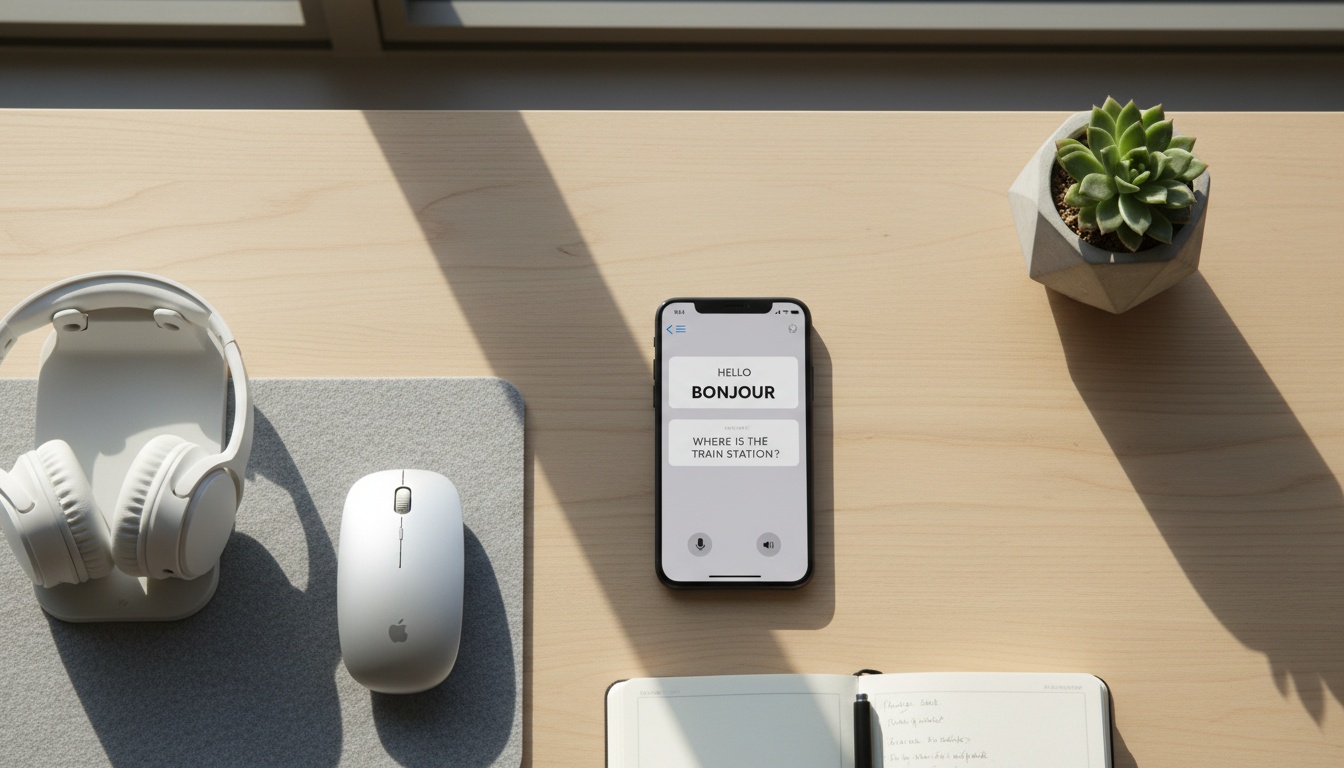
Translation headphones apps transform your existing earbuds into AI translation earbuds using speech recognition, neural machine translation, and text-to-speech. You speak in English, your partner hears Spanish through their earbuds in real-time.
Tap and speak in English
Tap to start
Unlike basic translation apps for everyday use, these voice translation tools process conversations live. Here's how they work: The technology relies on your phone's internet connection to access cloud-based translation engines (which means dead zones kill your conversations mid-sentence). Most apps work with modern Bluetooth connections for stable connectivity.
How Real-Time Translation Actually Works
The translation pipeline happens in four stages: audio capture, speech-to-text conversion, language translation, and text-to-speech output. Each step introduces translation latency — which can vary significantly based on network conditions, language pair, and processing complexity.
But here's what matters more than app choice: it's not just about the app, it's about your audio setup. Short, clear statements achieve near-perfect results, while conversational rambling confuses the speech recognition engines.
Want to test how your conversations would translate? Try various translation apps to see which handles your specific language pair and accent best.
2. Real Translation Accuracy: What Works (And What Fails in Real Conversations)
Testing translation apps across different environments and language pairs reveals significant performance variations. The results are often surprising.
Testing Results by Environment
• Quiet indoor conversations typically deliver solid performance across major language pairs. Simple sentences often translate accurately, though complex statements with idioms may see reduced accuracy.
• Noisy environments generally reduce performance significantly. Coffee shops, busy streets, and restaurants introduce enough interference to miss key words. Performance in noisy conditions varies significantly by device and app version, with some requiring near-silence while others handle moderate background noise better.
• Technical terminology presents mixed results. Medical, legal, and engineering terms often translate incorrectly or not at all. Business conversations about contracts typically show functional but may not be reliable for critical discussions.
Regional accents can significantly impact performance across different apps and updates.
Accuracy Testing Results by Scenario
Despite these challenges, single sentences often achieve high accuracy once past the initial lag. Still, natural conversation includes interruptions, overlapping speech, and incomplete thoughts — scenarios where current AI translation struggles.
Longer statements typically cause accuracy drops across all platforms. Interestingly, apps with extensive language support often perform well in controlled environments but may struggle with conversational flow.
3. 8 Translation Apps Tested: Which Handles Your Language Pair and Accent?
| App Name | Key Feature | Price | Best For |
|---|---|---|---|
| Google Translate | Offline capability | Free | General use, travel |
| Microsoft Translator | Teams integration | Free/Enterprise | Business meetings |
| iTranslate | Premium voice recognition | Free/Pro | Nuanced speech |
| SayHi Translate | User-friendly interface | Free/Ad-free | Romance languages |
| Timekettle App | Asian language strength | Free | Chinese/Japanese |
| Waverly Labs Pilot | Auto language detection | Free/IAP | Travel scenarios |
| Speak & Translate | Voice conversation mode | Free/Pro | Real-time conversations |
| TripLingo | Travel-focused phrases | Free/Pro | Travel scenarios |
Google Translate is a strong free option with broad language support and offline capability. The conversation mode works well with any Bluetooth headphones, though some users find the interface less intuitive for extended discussions.
Microsoft Translator offers solid business translation features with Teams integration and group conversation features. Strong performance for European languages. Free for personal use, with enterprise pricing available.
iTranslate provides voice recognition with broad language support. The conversation mode includes text transcripts and sharing options. Free version has usage limitations, Pro subscription available.
SayHi Translate features an interface with large, clear buttons for conversation mode. Shows good performance for Romance languages. Free with ads, ad-free version available.
Timekettle's companion app works with various Bluetooth headphones and shows good performance with tonal languages like Mandarin and Japanese—important if you're doing business in Asia where accent and tone directly affect meaning.
Waverly Labs Pilot focuses on conversation translation with language detection features. Works well for travel scenarios but may lack advanced business features. Free with in-app purchases.
Speak & Translate offers voice conversation features with text display options. Useful when audio translation needs visual backup. Free with premium upgrade options.
TripLingo combines translation with travel-specific phrases and cultural information. Includes offline phrasebooks and voice translation features. Free with premium subscription available.
Most of these apps require testing to find which works best for your specific use case—accent, language pair, and noise environment all matter. Many apps offer free tiers or trial periods to evaluate whether the app handles your needs before upgrading.
Free vs Paid Features Breakdown
| Free Features | Paid Features |
|---|---|
| Basic translations with ads | Unlimited translations |
| Limited daily usage | Offline language packs |
| Standard languages only | Premium languages |
| No conversation transcripts | Meeting integration |
That said, Google Translate provides the most comprehensive free experience, while specialized apps justify their cost with better headphone integration.
Paid subscriptions typically add unlimited translations, ad-free experience, offline language packs, and conversation transcripts. For business users, enterprise features include meeting integration and administrative controls.
4. Get Started in Minutes: Setting Up Your Translation App
Installing translation headphones apps takes minutes for most platforms. Start by downloading your chosen app and enabling microphone permissions — critical for voice recognition functionality.
Bluetooth pairing follows standard protocols. Connect your headphones to your phone first, then open the translation app. Most apps automatically detect connected audio devices, though some require manual selection in settings.
Language selection varies by app. Google Translate auto-detects languages, while others require manual selection. Set your primary language and target language before starting conversations.
Audio testing prevents mid-conversation failures. Use the app's test feature to verify both input and output audio work correctly. Adjust microphone sensitivity if available — too high picks up background noise, too low misses quiet speech.
Platform differences matter. iOS translation app versions often integrate better with Siri and system audio due to Apple's tighter ecosystem control, while Android translation app versions typically provide more customization options for audio routing and notification handling.
Integrating with Video Calls and Messaging Apps
Most translation headphones apps work alongside popular communication platforms, though setup varies significantly. For example, Zoom and Teams integration requires selecting the translation app as your audio input source during meeting setup.
WhatsApp voice calls present challenges since the app controls audio routing directly. You'll need to use speaker mode and position your phone strategically for the translation app to capture both sides of the conversation.
For multilingual communication during video conferences, some apps offer screen sharing features. These display translated text alongside audio translation—useful when participants need to see technical terms or complex phrases.
Common Setup Issues and Quick Fixes
• Connection problems → Try adjusting codec settings in developer options if experiencing audio lag. Clear the app's cache if translations stop processing.
• Audio lag → Clear app cache and restart. Some translation apps conflict with other voice-activated services running simultaneously.
• Poor voice pickup → Position phone 6-12 inches from mouth. Beyond connectivity, audio quality optimization requires finding the sweet spot between noise cancellation and voice pickup.
5. Cost Comparison: Apps vs Hardware
Translation headphones apps cost significantly less than dedicated hardware. App subscriptions range from free to premium tiers with varying pricing, while translation earbuds range from budget to premium models with widely varying costs.
Performance differences favor apps for language support and accuracy. Apps leverage the same neural machine translation engines as dedicated earbuds but with more frequent updates and broader language coverage.
Battery considerations tip toward apps. Your phone handles processing, preserving earbud battery for audio playback. Dedicated translation earbuds require charging the translation hardware separately and typically offer several hours of playtime.
Internet connectivity requirements apply to both options. Most translator earbuds require smartphone pairing and data connections for cloud processing, negating the "standalone" advantage over apps.
Dedicated earbuds excel in specific scenarios: hands-free operation while driving, discreet translation in professional settings, and integration with voice assistants.
Best Use Cases for Each Option
Travel scenarios favor apps for their flexibility and cost-effectiveness. Business meetings benefit from dedicated earbuds' professional appearance and hands-free operation.
For professional translation services, apps provide better conversation transcripts and sharing features for follow-up reference. Casual conversations work well with either option.
6. Accessibility Features for Hearing-Impaired Users
Translation headphones apps offer several accessibility advantages over traditional interpretation methods. Visual transcript displays help users with hearing difficulties follow conversations in real-time, while adjustable text size and high-contrast modes improve readability.
Many apps include haptic feedback options that vibrate when translation is complete. This proves especially valuable in noisy environments where audio cues get lost.
Cross-language communication becomes more inclusive when apps offer simultaneous interpretation through both audio and visual channels. Users can choose their preferred input method — speaking, typing, or showing pre-written phrases.
Some platforms integrate with hearing aid Bluetooth connectivity, routing translated audio directly to compatible devices. This eliminates the need for separate earbuds while maintaining conversation privacy.
7. Privacy, Security & Troubleshooting Your Translation App
Data security varies dramatically between providers. Google and Microsoft encrypt voice data in transit but store conversation logs for AI training. Some apps process locally when possible, reducing cloud exposure.
Business users should review each app's privacy policy carefully. Privacy policies and data handling practices can vary significantly between apps. Microsoft Translator offers enterprise-grade encryption and data residency controls for sensitive discussions.
Common technical issues include audio lag, missed speech segments, and app crashes during long conversations. Most problems resolve by restarting the app or reconnecting Bluetooth devices.
Performance optimization requires stable internet connections. Download offline language packs when available to reduce latency and improve reliability in areas with poor cellular coverage.
When translation apps fail completely, having backup strategies helps. Many apps include text display features that show translated text on your phone screen for the other person to read — useful when audio translation breaks down or in noisy environments where headphones can't compete with background sound.
Advanced Troubleshooting for Power Users
Conversation translation failures often stem from microphone positioning rather than app problems. Test different distances and angles to find your device's optimal pickup range.
For persistent connection issues, clear your phone's Bluetooth cache and re-pair devices from scratch. Some translation apps conflict with other voice-activated services running simultaneously.
8. Key Takeaways
- Translation apps achieve strong accuracy in quiet environments but struggle with background noise
- Google Translate is a strong free option with offline capability
- Apps cost significantly less than dedicated earbuds
- Short, clear sentences translate better than conversational rambling
- Business users need enterprise-grade privacy from Microsoft Translator
- Setup requires proper Bluetooth pairing and microphone permissions
- Regional accents can significantly impact accuracy across all platforms
- Professional interpretation services remain necessary for critical discussions
Ready to test translation headphones for yourself? Try various free translation apps to find which works best for your specific language pair and accent before committing to premium features.